Category: How-To Guides

  • QuickBooks Accountant Desktop Guide: Buy QuickBooks 2024 for Seamless Accounting

    QuickBooks Accountant Desktop Guide: Buy QuickBooks 2024 for Seamless Accounting

    Keeping business books accurate, organized, and ready for review takes the right tools. For accountants and business owners who need reliable workflows, QuickBooks Accountant Desktop offers advanced bookkeeping features, detailed reporting, and strong financial control. This guide explains why it remains a practical choice, what it can do for day-to-day accounting, and how to choose the right version for your setup.

    If you are comparing desktop accounting options, you may also want to review our guide to QuickBooks Desktop Pro 2023 for broader feature context.

    Why Choose QuickBooks Accountant Desktop?
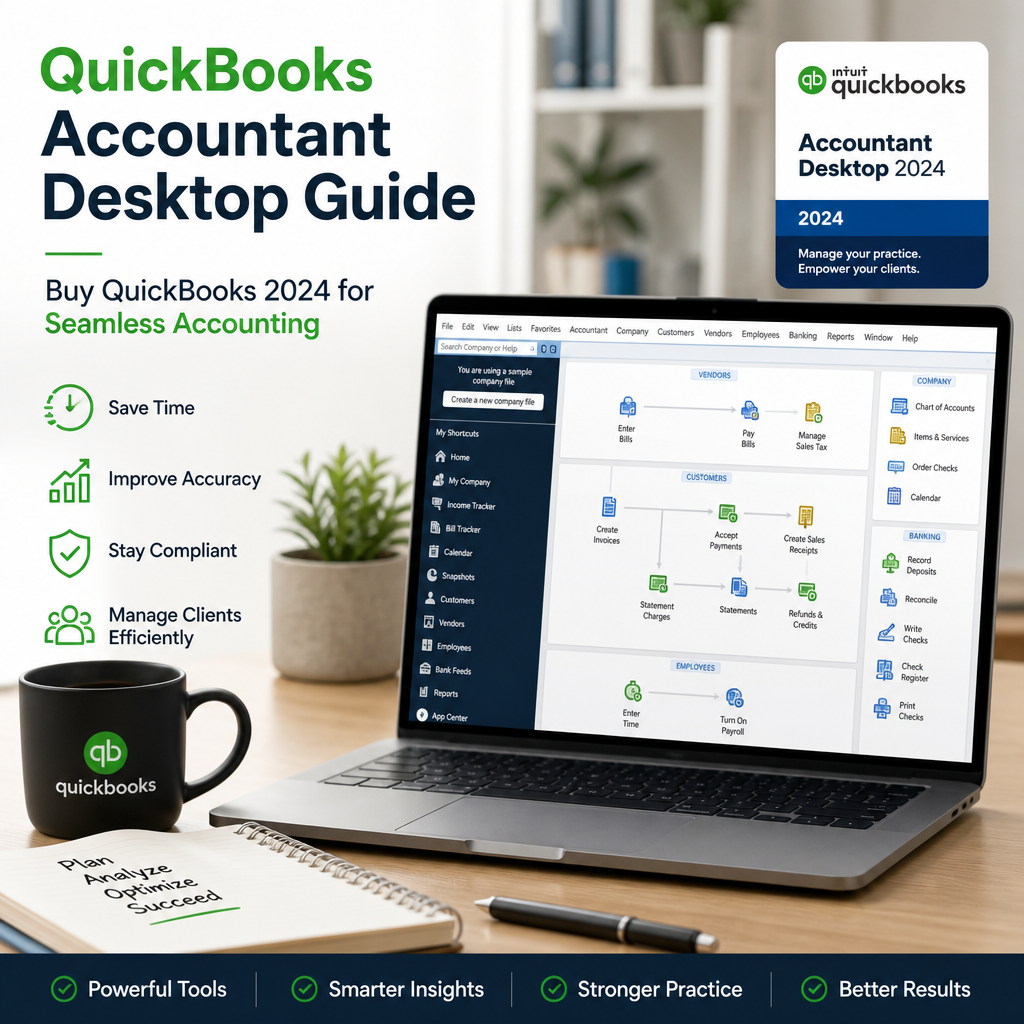
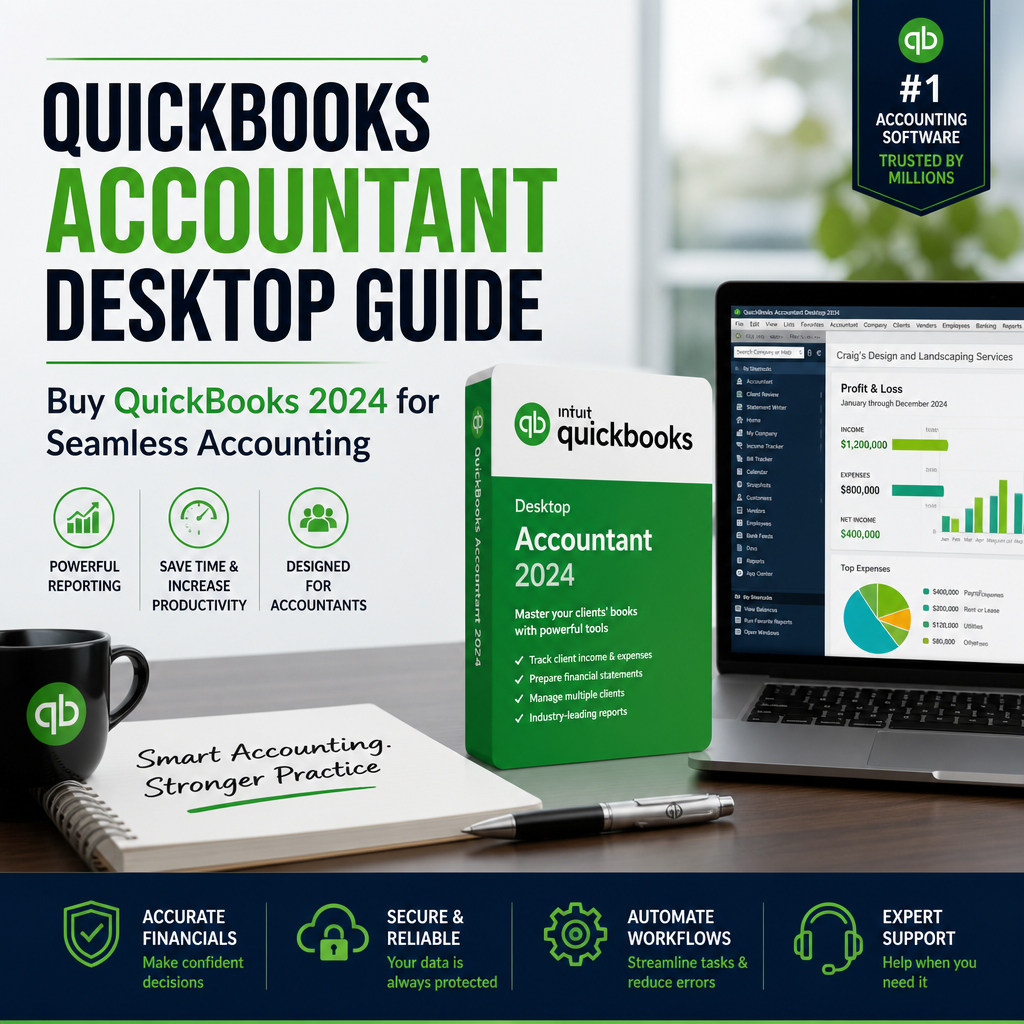
    A computer screen displays QuickBooks Accountant Desktop 2024 guide promoting seamless accounting and advanced bookkeeping fe

    For professionals who handle multiple books, reconciliations, and client files, desktop accounting software still has a strong advantage. It gives you deeper control over data, structured reporting, and more predictable workflows than many lightweight cloud tools. That matters when accuracy and speed are equally important.

    QuickBooks Accountant Desktop is especially useful when you need a tool built around bookkeeping tasks rather than general office productivity. It supports detailed review, correction, and file management so accountants can work with fewer interruptions.

    Unmatched Financial Control

    The software includes tools designed for accountants and small business owners who need to track multiple company files, correct errors efficiently, and manage complex transactions. With a QuickBooks licence, you can oversee accounts, payroll, inventory, and taxes in one environment without relying on unnecessary add-ons.

    That level of control is one reason many users prefer desktop software for year-end work, monthly reconciliation, and client cleanup. If you want to compare other desktop editions before deciding, see QuickBooks Desktop Alternatives.

    Detailed and Customizable Reporting

    One of the biggest benefits of this platform is the depth of its reporting. You can generate reports for income, expenses, cash flow, and account balances, then customize them to match client needs or internal workflows. This makes tax prep and management review easier.

    Better reporting also supports better decision-making. When you can isolate trends, compare periods, and review categories quickly, you spend less time searching for answers and more time acting on them.

    Seamless Data Collaboration

    Accountants often need to review files from more than one client or team member. QuickBooks Accountant Desktop helps with that through features like Accountant’s Copy and Batch Enter Transactions. These tools make it easier to exchange data, check edits, and keep books aligned.

    Collaboration becomes less stressful when files can move securely between users and records stay organized throughout the process.

    Essential Features in QuickBooks Accountant Desktop

    Here are some of the most useful features that make this accounting software attractive to professionals:

    • Accountant Center: Keep important accountant tools in one place for faster navigation and better productivity.
    • Batch Transaction Processing: Save time by entering and editing multiple records at once.
    • Smart Review Tools: Spot inconsistencies, fix client errors, and streamline reconciliation work.
    • File Transfer and Backup: Move files safely between accountant and client while maintaining secure backups.
    • Integration: Connect with banking tools and add-ons for a more connected workflow.
    • Compatibility: Works well with QuickBooks Pro Plus 2024 and is available for both PC and QuickBooks Mac users.

    How It Supports Daily Bookkeeping

    For routine bookkeeping, the value is in speed and consistency. Instead of jumping between separate tools, you can use one desktop system to manage transactions, review ledgers, and prepare reports. That helps reduce manual errors and lowers the time spent on repetitive tasks.

    It also makes it easier to standardize internal processes. When your team follows the same system for entering and reviewing data, bookkeeping becomes more reliable over time.

    Who Benefits Most?

    This software is a strong fit for accountants, bookkeeping professionals, and owners of service businesses that need detailed financial oversight. It can also help users who prefer a more traditional desktop workflow or who manage files offline on a regular basis.

    For users who want to understand how desktop editions are changing, our article on QuickBooks Desktop Going Away? is a helpful companion read.

    How QuickBooks Accountant Desktop Powers Financial Success

    Whether you are an independent CPA or managing books for multiple businesses, the right accounting platform can save time and reduce stress. This software supports financial success by improving accuracy, accelerating close cycles, and presenting a cleaner view of business performance.

    Accurate Books, Always

    One of the most important benefits is the reduction of missed transactions and manual errors. When bookkeeping data is organized properly, you can trust your reports more and spend less time correcting avoidable mistakes.

    That confidence matters during audits, tax preparation, and client reviews. Clean books lead to better decisions and fewer last-minute problems.

    Faster Close Cycles

    Batch tools, easy navigation, and efficient reporting shorten reconciliation and closing work. Instead of spending hours on repetitive entries, you can focus on the exceptions that need human review.

    This is especially helpful during busy periods when deadlines are tight and turnaround time matters.

    Client Confidence

    When financial statements are precise and delivered on time, clients notice. Reliable reporting builds trust and strengthens your reputation as a professional who handles books with care.

    That trust can be just as valuable as the software itself, because it supports long-term client relationships and more consistent results.

    How to Buy QuickBooks Accountant Desktop and Save 50%

    Ready to take control of your finances and bookkeeping? Now is a good time to review available offers and choose the version that fits your needs. Authorized resellers such as usquickbooks and quickbooksforllc may offer promotional pricing, including 50% OFF opportunities on select licenses.

    Before you purchase, compare the edition, device compatibility, and the type of support you need. If you are buying for a new setup, the official product pages and software information can help you confirm the version details before checkout.

    For more information on the product family from the publisher, visit the official QuickBooks Desktop product overview.

    Getting Started Is Simple

    1. Choose your version: Select QuickBooks Accountant Desktop, QuickBooks 2024, or QuickBooks Mac based on your workflow.
    2. Verify reseller offers: Trusted US resellers like usquickbooks and quickbooksforllc may provide limited-time discounts.
    3. Purchase and download: Secure your QuickBooks licence and begin setup.
    4. Migrate existing data: Bring over your current books for a smoother transition.
    5. Begin your workflow: Use the software to manage books, review reports, and keep control of financial records.

    Tips Before You Install

    Before installing any desktop accounting software, check your system requirements, confirm your company file backups, and make sure you have access to all necessary login information. A little preparation helps prevent delays during setup.

    If you need a broader purchasing guide, our post on Buy QuickBooks Desktop explains how to choose the right option for your business.

    Practical Ways to Get More from the Software

    The most effective way to use desktop accounting software is to build consistent routines around it. Start with regular transaction entry, scheduled reconciliation, and standardized report review. Those habits make month-end closing easier and reduce the chance of missed details.

    You can also create internal processes for file sharing and backup. That keeps data safer and makes it easier for multiple people to work on the same books without confusion.

    Best Practices for Accountants

    • Review bank feeds and posted entries on a fixed schedule.
    • Use reports to compare current performance against prior periods.
    • Keep backup copies before making major changes to company files.
    • Document recurring adjustments for faster future reviews.
    • Train team members to use the same workflow for consistency.

    Why Desktop Users Still Prefer This Approach

    Many professionals still choose desktop accounting because it offers stable access, detailed controls, and a familiar interface for bookkeeping work. For teams that value local file management and advanced reporting, those benefits can outweigh the simplicity of lighter tools.

    That does not mean desktop software is right for everyone, but it remains a dependable option for businesses that need structure and oversight.

    Conclusion: Invest in Your Success

    QuickBooks Accountant Desktop is more than accounting software. It is a practical tool for professionals who need reliable bookkeeping, detailed reporting, and better financial control. Whether you are an accountant, an LLC owner, or a business managing multiple books, it can help simplify your workflow and improve accuracy.

    If you are ready to buy QuickBooks and want a desktop solution that supports advanced bookkeeping, now is a strong time to explore your options. With the right version, proper setup, and a consistent process, you can master your books and maintain clearer financial control throughout the year.

    For users comparing versions across devices and product lines, QuickBooks Accountant Desktop remains a strong choice for seamless financial management, especially when paired with the right reseller, the right license, and a careful setup plan.

    For ongoing accounting guidance, QuickBooks Accountant Desktop can also serve as a reliable base for monthly close, clean reporting, and client-ready records. Used well, QuickBooks Accountant Desktop helps reduce friction in everyday bookkeeping and keeps important financial work moving forward.

    When you are weighing long-term software options, QuickBooks Accountant Desktop stands out for accountants who want depth, structure, and dependable desktop performance. If your process depends on accuracy and review, QuickBooks Accountant Desktop can be the foundation that keeps your books organized all year.

    Many small firms still choose QuickBooks Accountant Desktop because it combines practical controls with a familiar workflow. For teams that need clear records and timely insights, QuickBooks Accountant Desktop remains a proven option for day-to-day accounting.

    As your business grows, QuickBooks Accountant Desktop can support stronger oversight without adding unnecessary complexity. That is why QuickBooks Accountant Desktop continues to be a trusted choice for professionals who want efficiency, control, and reliable reporting in one place.
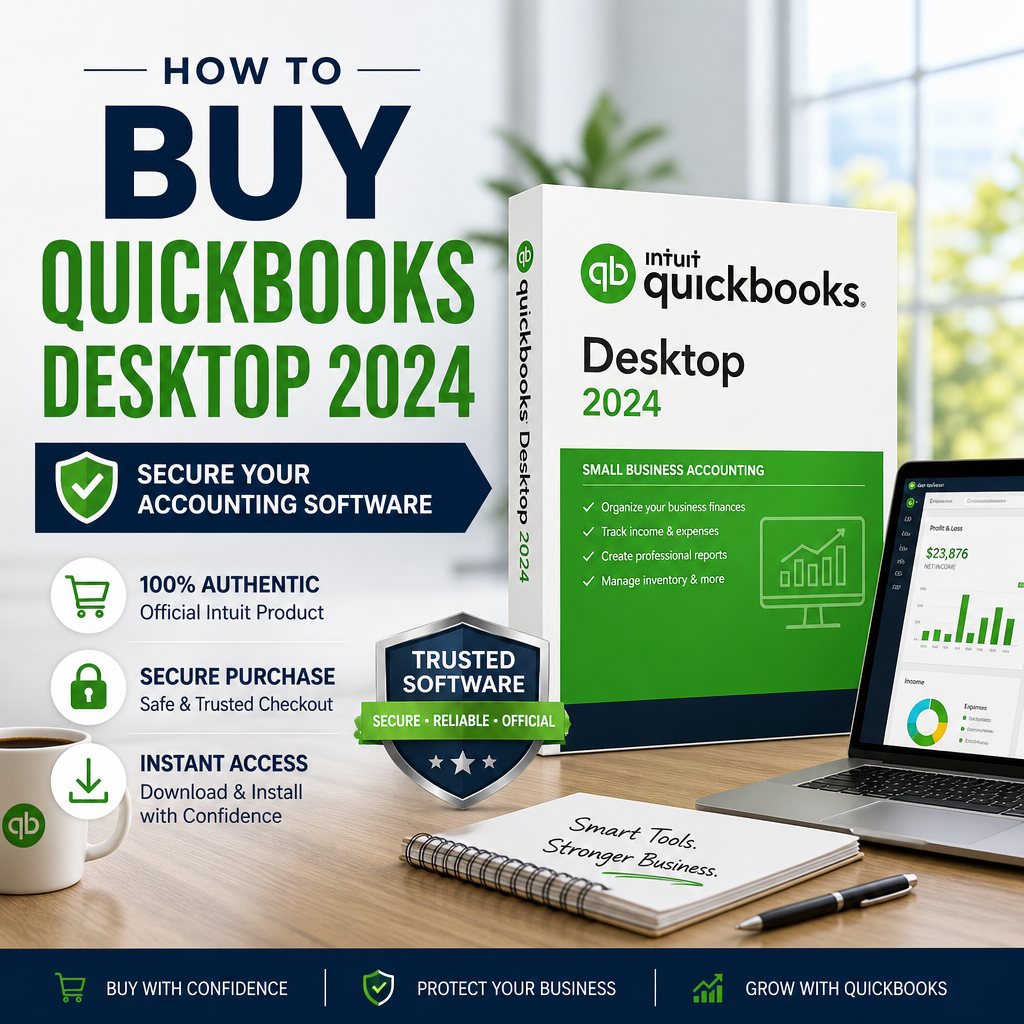
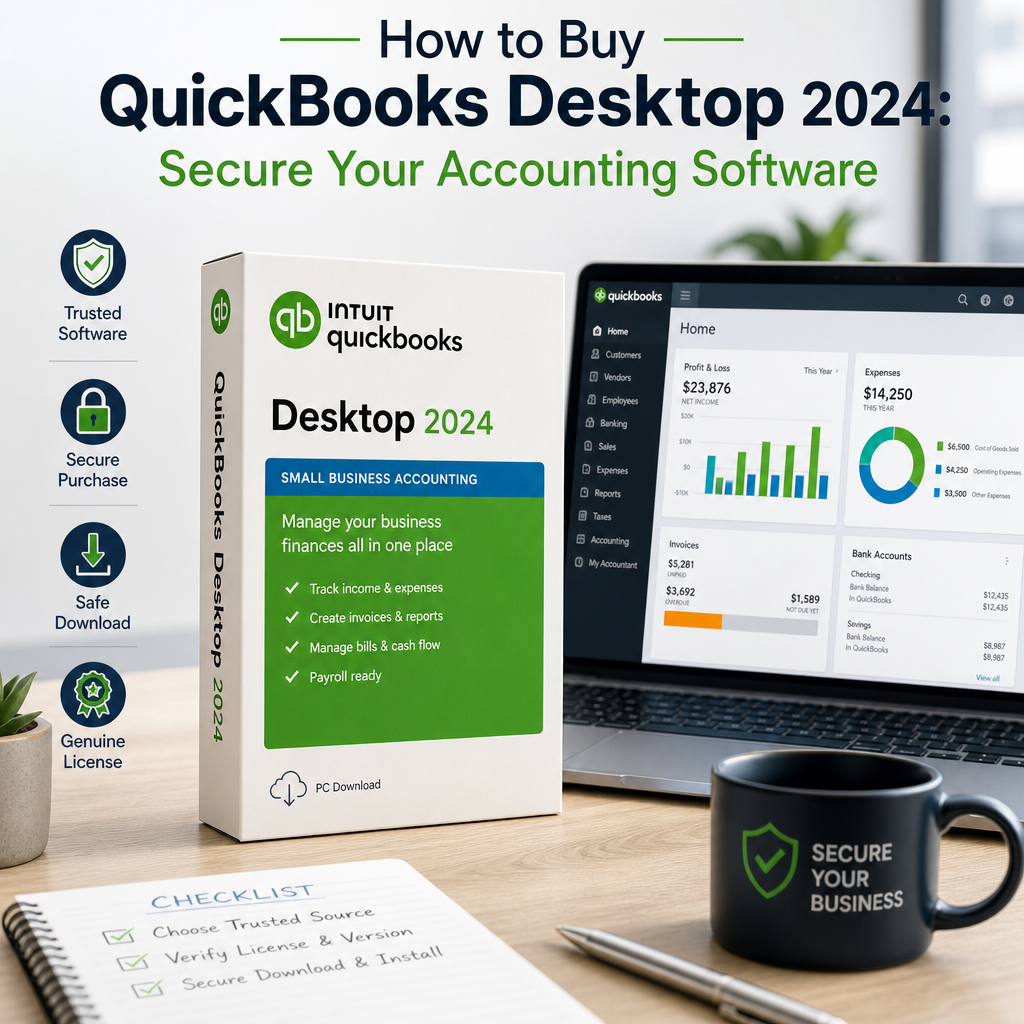
  • Buy QuickBooks Desktop: Secure Your Accounting Software Guide

    Buy QuickBooks Desktop: Secure Your Accounting Software Guide

    In today’s dynamic business landscape, managing your finances efficiently is non-negotiable. Choosing powerful accounting software can improve visibility, support compliance, and help your business grow. If you’re ready to buy QuickBooks Desktop, this guide will help you navigate your options with confidence and make a secure, informed purchase.

    Before you choose a version, it helps to understand what QuickBooks Desktop offers, who it suits best, and how to verify that you are buying a genuine product. The sections below cover the essentials in a practical way, so you can avoid common mistakes and select the right setup for your business. If you plan to buy QuickBooks Desktop, a little preparation now can save time, reduce risk, and make day-to-day bookkeeping much easier.

    Why QuickBooks Desktop Remains a Top Choice

    QuickBooks Desktop 2024 software box beside a laptop showing an accounting dashboard for secure business finance management.

    QuickBooks has long set the standard in accounting software for small and medium-sized businesses. The desktop version, including options like QuickBooks Pro Plus 2024, remains popular because it combines control, depth, and reliability in one platform. Many buyers still choose to buy QuickBooks Desktop because they want a dependable accounting system with strong local control and detailed reporting.

    Many business owners prefer desktop accounting software because it gives them direct access to their company file and reporting structure. For teams that want a stable workflow and detailed financial tools, QuickBooks Desktop continues to be a trusted choice. It is particularly appealing for organizations that want a familiar interface, a powerful chart of accounts, and a workflow that can be tailored to internal processes without excessive complexity.

    • Robust functionality: Comprehensive tools for bookkeeping, payroll, inventory management, and reporting.
    • Enhanced security: Data is stored locally, reducing reliance on external servers.
    • Powerful customization: You can tailor workflows and reports to suit your business needs.
    • Predictable day-to-day use: Teams often appreciate the consistency of desktop-based accounting software.

    QuickBooks Desktop is especially useful for businesses that want more control over accounting processes. If your work depends on detailed reports, tracking, and structured recordkeeping, this format can still be an excellent fit. For companies that have grown beyond basic spreadsheets but do not need a fully cloud-based ecosystem, it can offer the right balance of structure and flexibility.

    Which Version Should You Buy?

    Before you buy QuickBooks Desktop, it’s essential to identify the edition that matches your business requirements. The right version depends on your team size, industry, and the features you use every day. Choosing carefully helps ensure that the accounting software you purchase aligns with the way your business operates instead of forcing you to adjust your workflow later.

    QuickBooks Pro Plus 2024

    This option is a strong choice for small businesses that need advanced bookkeeping and reporting tools. It also includes support and regular updates as part of the subscription model. Many owners compare it first when they want to buy QuickBooks Desktop because it is a familiar entry point with solid core functionality.

    • Ideal for businesses that want dependable day-to-day accounting.
    • Useful for teams that need collaboration features.
    • Well suited to companies that want a current version with ongoing support.
    • Appropriate for businesses that want a straightforward accounting setup without unnecessary extras.

    QuickBooks Premier Plus

    Premier Plus is a better fit for businesses with industry-specific needs. It includes tools designed for sectors such as retail, manufacturing, and nonprofit organizations. If your company needs specialized reporting or more granular inventory workflows, this edition may be worth reviewing before you buy QuickBooks Desktop.

    • Advanced inventory tracking.
    • Project profitability features.
    • Industry-focused reporting options.
    • Tools that help businesses manage more complex operational requirements.

    QuickBooks Mac 2024

    If your team uses macOS, QuickBooks Mac 2024 offers a streamlined experience built for Apple environments. It provides a familiar interface for users who prefer working on a Mac. For businesses that work in a mixed environment, confirming operating system compatibility before purchase is an important step.

    For a broader comparison of desktop options and the direction the product line is heading, you may also want to review QuickBooks Desktop Alternatives: Top Picks for Modern Accounting Software.

    What to Consider Before You Purchase

    When planning to buy QuickBooks Desktop, take a few minutes to review your operational needs. A careful assessment now can prevent compatibility problems, wasted spending, and unnecessary setup work later. It also makes it easier to compare QuickBooks licence options and choose a product that fits both your current requirements and your future plans.

    Identify your business structure

    LLCs should review whether the software supports the reporting and management features they need. It also helps to confirm the number of users and workstations that will access the file. If you expect your business to expand, think about whether the edition you select can accommodate added complexity over time.

    If you are researching business-focused setup options, solutions associated with quickbooksforllc may help you narrow down the right fit for your workflow. The goal is to choose accounting software that supports your entity type, your team size, and the way you record transactions every month.

    Compare features

    Every business uses accounting software differently. Some need payroll, while others focus on inventory or client billing. Make a short list of the features you will actually use before making a decision. This helps you avoid paying for functionality you do not need while still making sure the version you buy QuickBooks Desktop model supports your key accounting tasks.

    • Do you need payroll processing?
    • Do you manage complex inventory?
    • Does your workflow require custom reporting?
    • Will multiple people need access at the same time?
    • Do you need industry-specific reporting tools?
    • Will your books need regular audit-ready documentation?

    Review licensing and authenticity

    Always secure a genuine QuickBooks licence from a trusted seller. This protects your purchase, your data, and your access to updates and support. A valid license is just as important as the software itself, because it helps ensure that activation works properly and that you can receive the services you expect after purchase.

    Unauthorized resellers can create serious problems, including missing activation details, invalid licensing, and limited support. If you are paying for business software, authenticity should be treated as a requirement, not an optional extra. Before you buy QuickBooks Desktop, confirm what is included, how the licence is delivered, and whether support is available if you need help during installation.

    Where to Buy QuickBooks Desktop Safely

    Ensuring that your purchase is legitimate and supported is critical. If you want to buy QuickBooks Desktop with confidence, focus on reputable sources and verified product information. That approach gives you a better chance of receiving a proper licence, reliable installation files, and access to help when you need it.

    Official vendors and trusted partners

    The safest starting point is the official Intuit QuickBooks website, which provides product details, version information, and support resources. You can review the official product area on the Intuit QuickBooks website before you compare vendors or purchase options. Checking the official source helps you understand the current product lineup and determine whether the software package you are considering is current and legitimate.

    Reputable authorized partners may also offer bundles, onboarding help, or expert guidance for business owners who want extra support during setup. When you buy QuickBooks Desktop through a trusted channel, you reduce the risk of activation problems and lower the chance of purchasing outdated or unsupported software.

    Specialist vendors

    Specialist accounting software vendors can be useful when you need help choosing between editions or matching software to a specific business type. They may also be able to explain licensing terms more clearly, which is helpful if you are comparing a few different offers. The best vendors will answer questions about version compatibility, delivery methods, and support before you complete the transaction.

    Check for direct support and updates

    Before completing a purchase, confirm that the vendor provides access to Intuit updates, patches, and technical support. This is especially important if you plan to use the software for bookkeeping, payroll, or reporting on a regular basis. A legitimate purchase should come with clear instructions, a transparent support path, and enough information to help you start using the software without confusion.

    A good purchase experience should include clear instructions, valid licensing, and a straightforward path to support if something goes wrong. If a seller cannot explain how activation works or what happens after purchase, consider that a warning sign.

    Avoid Common Pitfalls

    Many buyers focus on price first, but the cheapest option is not always the best one. To maintain the integrity and security of your business finances, watch for warning signs before you complete your order. When you buy QuickBooks Desktop, the quality of the seller matters just as much as the product description.

    • Beware of counterfeit software: Deep discounts and unfamiliar sellers may signal pirated or outdated versions.
    • Verify credentials: Confirm the seller’s status as an authorized reseller or legitimate distributor.
    • Review return policies: Make sure there is a money-back or exchange option if the product does not meet your needs.
    • Check delivery details: Make sure you understand whether the product is shipped, downloaded, or activated through a license key.

    It is also smart to confirm exactly what version you are buying. Product names can look similar, and a listing that appears to match your needs may not include the correct edition, support level, or license type. If you are comparing offers for QuickBooks Pro Plus 2024 or another edition, verify every detail before payment to avoid delays or confusion.

    After You Buy QuickBooks Desktop

    Once you’ve secured your genuine QuickBooks licence, the next step is making sure the software is installed and configured correctly. A careful setup helps you avoid delays and makes it easier to keep your books organized from day one. This is where many users gain the most value, because the software can only support your business well when it is set up with the right accounts, permissions, and workflows.

    1. Installation: Follow the official installation guide and download only from Intuit or your trusted vendor.
    2. Activate your licence: Enter the provided licence key and keep it private to protect your investment.
    3. Set up your company file: Configure your chart of accounts, user access, and relevant integrations.
    4. Explore updates: For versions like QuickBooks 2024, enable automatic updates to stay protected and current.
    5. Test key reports: Run a few sample reports so you know your data is flowing correctly.

    It is also wise to back up your company file early, especially if your business depends on regular bookkeeping. Even though desktop software gives you more control over local storage, backups remain an important part of safe financial management. Consider setting a recurring backup routine so your accounting records are protected even if a device issue occurs.

    If you are moving from an older release or comparing current options, the article on QuickBooks Desktop Going Away? What It Means for Users may help you understand how recent product changes affect buyers and existing users.

    How to Get the Most Value from Your Purchase

    Once the software is installed, spend time learning the features that will save you the most effort. That could mean customizing invoices, setting up recurring transactions, organizing vendors, or reviewing reports on a weekly schedule. When you buy QuickBooks Desktop with a clear plan, you are more likely to see faster returns from the software because setup and training are aligned with your actual workflow.

    Many businesses benefit from a short onboarding process. Even a few hours of setup work can make day-to-day bookkeeping much easier. If you have a team member who will manage the books, make sure that person understands the file structure, login permissions, and backup routine. A small amount of training can help reduce errors and make month-end close more efficient.

    It is also useful to document your process. A simple internal guide that explains how to enter transactions, reconcile accounts, and export reports can reduce mistakes later on. This is especially helpful as your business grows and more people need to interact with the accounting system. Documentation also makes it easier to maintain consistency if responsibilities shift to another employee or outside bookkeeper.

    To get more value from the platform, review your reports regularly and look for patterns in cash flow, outstanding invoices, and expense categories. Accounting software becomes much more useful when you treat it as a decision-making tool rather than just a recordkeeping system. The more consistently you use the features you purchased, the more likely it is that the software will support healthier financial management.

    Signs You May Need a Different Setup

    Even if you plan to buy QuickBooks Desktop, your business may need a different version than you first expected. If you rely heavily on cloud collaboration, mobile access, or constantly changing user permissions, another accounting system may be better aligned with your workflow. In that case, it is worth pausing before you buy QuickBooks Desktop so you can compare what you need against what the product actually delivers.

    Likewise, if your current process involves only a small number of users and a stable office environment, the desktop model may continue to be a practical and cost-effective option. The goal is to match the software to the way your business actually works, not just to follow a popular product name. For many teams, the right decision is less about trend and more about dependable, day-to-day usability.

    When in doubt, compare features carefully and review how each edition supports reporting, support, and future updates. A measured purchase decision often leads to a better long-term experience. If you are still uncertain, use your feature list, user count, and reporting needs as the deciding factors rather than price alone.

    Helpful buying checklist

    Before you finalize your purchase, use a short checklist to make sure nothing important has been missed. This can be especially helpful if you are comparing vendors and trying to decide when to buy QuickBooks Desktop.

    • Confirm the exact edition and year you need.
    • Verify the seller’s reputation and support options.
    • Check how the licence is delivered.
    • Make sure the software matches your operating system.
    • Review whether you need payroll, inventory, or multi-user access.
    • Save purchase records and activation details in a secure place.

    Taking a few minutes to confirm these points can prevent frustration after checkout. It also helps you start using the software faster because you will already know what to expect from the installation and setup process.

    How QuickBooks Desktop fits into a broader finance process

    Accounting software is only one part of a healthy financial system. To make the most of your investment, pair your software with good bookkeeping habits, consistent document storage, and regular account reviews. Businesses that buy QuickBooks Desktop successfully usually treat it as part of a larger workflow that includes transaction review, bank reconciliation, and periodic financial analysis.

    That broader approach can improve accuracy and reduce the time spent fixing errors later. It can also help business owners understand which reports matter most, such as profit and loss statements, balance sheets, and accounts receivable aging. When those reports are reviewed regularly, the software becomes more than a recordkeeping tool; it becomes a source of insight.

    If you are comparing accounting software options, think about the long-term value of training, documentation, and support. These factors often matter more than the initial price. A better-supported purchase can save hours over the course of a year, especially if your team depends on the system for billing or tax preparation.

    Conclusion

    The decision to buy QuickBooks Desktop can transform the way you manage your business finances. By considering your business’s unique needs, sourcing from authorized vendors, and securing the right QuickBooks licence, you set the stage for peace of mind, compliance, and growth. The right accounting software should make your work more organized, not more complicated.

    Whether you choose QuickBooks Pro Plus 2024, a Mac-friendly edition, or another version that better fits your workflow, the key is to buy from a trustworthy source and set the software up carefully. Make your investment wisely, and you can rely on secure, efficient accounting for years to come. If you are ready to buy QuickBooks Desktop, use the guidance above to choose confidently, avoid risky sellers, and start with a setup that supports your business from the beginning.

  • QuickBooks for Mac Desktop: Buy QuickBooks 2024 Accounting Software

    QuickBooks for Mac Desktop: Buy QuickBooks 2024 Accounting Software

    Managing your business finances doesn’t need to be overwhelming. With the right accounting software, you can streamline your processes, keep accurate records, and focus on growing your business. QuickBooks for Mac Desktop gives small business owners robust tools tailored to the needs of Mac users. In this guide, discover how it can improve bookkeeping, invoicing, reporting, and day-to-day financial control. If you are evaluating broader options, our QuickBooks Desktop alternatives guide can help you compare the desktop accounting landscape.

    Why Choose QuickBooks for Mac Desktop?

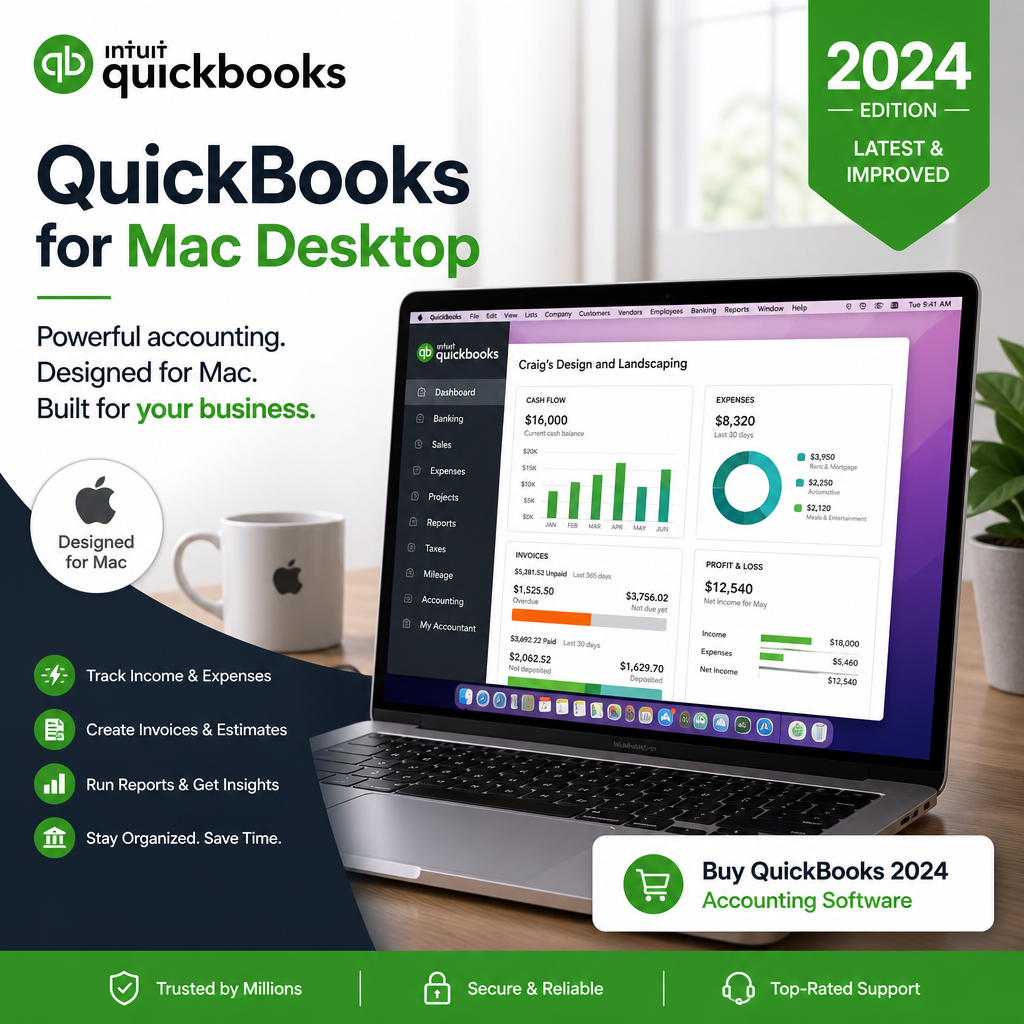
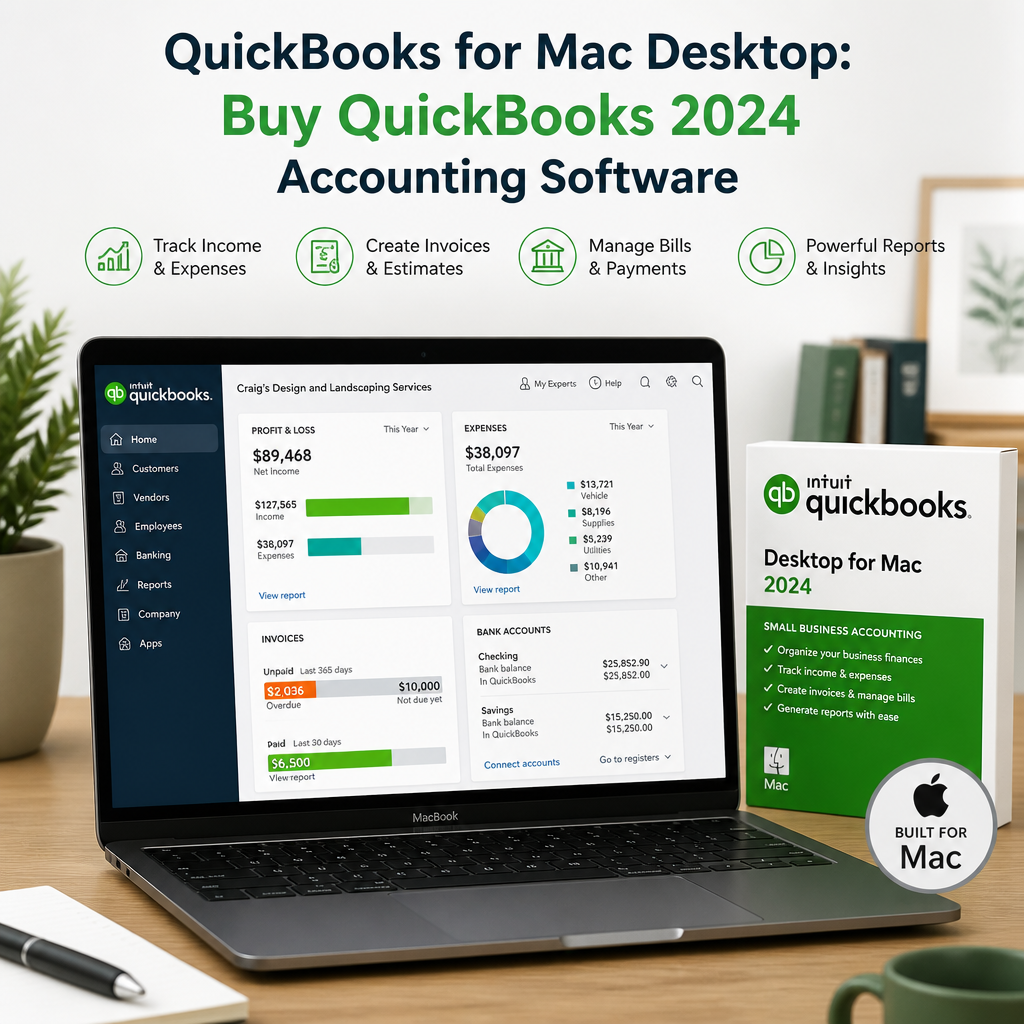
    QuickBooks for Mac Desktop 2024 box with icons for income, invoicing, bill management, and financial reports.

    Built natively for macOS, QuickBooks for Mac Desktop offers an intuitive, user-friendly interface that feels right at home on your Apple device. Unlike web-only solutions, this dedicated desktop software provides strong performance, offline access, and customization that give you more control over your company’s financial data. For many owners, QuickBooks for Mac Desktop is the practical middle ground between convenience and control.

    That control matters when you are handling daily transactions, preparing reports, and keeping tax records organized. QuickBooks for Mac Desktop is designed to help you move faster without losing visibility into the numbers that matter most. If your goal is a stable accounting workflow on a Mac, QuickBooks for Mac Desktop can be a strong fit.

    It also works well for businesses that prefer an installed application over a browser-based platform. Some owners simply want a dependable program they can open on their Mac, use consistently, and trust to keep their books in order. In that setting, QuickBooks for Mac Desktop offers a familiar environment for entering transactions, reviewing balances, and preparing reports without unnecessary complexity.

    Key Benefits of QuickBooks for Mac Desktop

    • Seamless Mac integration: Designed specifically for macOS, ensuring smooth performance and familiar navigation.
    • Offline access: Work on your books anytime, anywhere, with no browser limitations.
    • Enhanced security: Keep your business data safe on your device, with customizable backup options.
    • Comprehensive tools: Handle invoicing, expense tracking, bank reconciliation, and reporting in one place.

    Another benefit is consistency. Once you set up your company file and basic preferences, the software supports a repeatable workflow that can make bookkeeping feel less scattered. That consistency can be especially valuable for owners who manage finances themselves and need a system that reduces guesswork.

    For many teams, the biggest advantage is not one individual feature but the way the software brings everything together. Banking, sales, expenses, and reporting stay connected, so your records are easier to review when you are making decisions about cash flow, hiring, pricing, or tax planning.

    Streamline Your Bookkeeping

    Bookkeeping is the backbone of healthy business finances. With QuickBooks for Mac Desktop, tedious manual entries become much easier to manage, which helps reduce errors and save time during busy weeks. This is especially helpful when you are balancing sales, vendor bills, and recurring expenses in a single system.

    Better bookkeeping also means better visibility. When your transactions are organized correctly, it becomes easier to know where money is coming from, where it is going, and which accounts need attention. That clarity can make every monthly review faster and more useful.

    Effortless Data Entry

    Import bank and credit card transactions directly into QuickBooks, reducing manual work and improving accuracy. You can categorize expenses with drag-and-drop ease or set up automation rules for faster record keeping. When bookkeeping stays current, QuickBooks for Mac Desktop can make monthly close and reconciliation far less stressful.

    Instead of entering every transaction from scratch, you can rely on imported data to speed up routine updates. That saves time and also helps reduce common typing errors, especially when your business processes a high volume of payments or receipts.

    As your records accumulate, the software makes it easier to keep transaction details organized by account, vendor, customer, or class, depending on your setup. That structure can be helpful when you want to identify spending patterns or prepare records for an accountant.

    Quick Invoicing and Payments

    Create professional invoices in minutes, complete with your branding. Email them directly to clients from the software and track payment status in real time. Accept online payments securely to help speed up cash flow. For service businesses and consultants, QuickBooks for Mac Desktop keeps billing tasks tied closely to your records.

    Invoicing is often one of the first places small business owners feel the benefit of an organized accounting system. When invoices are tied directly to customer records and income tracking, it becomes easier to manage outstanding balances and follow up on late payments.

    That matters because faster invoicing often leads to faster cash collection. Instead of waiting until the end of the week or month to create bills, you can issue them as soon as the work is complete and keep your revenue cycle moving.

    Simplified Expense Tracking

    Attach digital copies of receipts to transactions for smoother expense management. Generate expense reports in a few clicks, making tax time easier and helping you stay organized throughout the year. Better expense tracking also means QuickBooks for Mac Desktop can support cleaner financial statements and more reliable reporting.

    Keeping receipts and expense records attached to the matching transactions also gives you a clearer audit trail. When you later need to explain a purchase, verify a deduction, or answer a question from your CPA, the supporting information is easier to find.

    For owners who travel, buy supplies often, or manage multiple vendors, this feature can reduce the stress of sorting paperwork later. A few seconds spent attaching a receipt now can save a lot of time during tax season.

    Practical Bookkeeping Habits

    If you want to get the most value from the software, consistency matters. Set aside a regular time each week to review imported transactions, match deposits, and check for uncategorized expenses. This simple habit keeps your books current and prevents small problems from piling up.

    It also helps to review vendor bills and customer payments before the month ends. When records are updated on a schedule, reports are more accurate and the closing process becomes less stressful. That is one of the quiet strengths of QuickBooks for Mac Desktop: it supports a disciplined routine without requiring a complicated setup.

    Powerful Reporting and Insights

    QuickBooks for Mac Desktop transforms raw data into actionable insights. Whether you need a Profit & Loss report, Balance Sheet, or cash flow overview, customizable reports can be generated quickly to guide business decisions. Those reports can also help you spot spending trends, identify seasonal patterns, and monitor profitability as your company grows.

    For official guidance on bookkeeping records and small business accounting basics, the IRS Small Business and Self-Employed Tax Center is a useful external reference for owners who want to stay compliant and organized.

    Reporting is often where the software becomes more than a place to store numbers. Instead, it becomes a decision-making tool. You can use it to compare this month against last month, track whether your margins are improving, or see which costs are rising faster than revenue.

    Key Reporting Features

    • Automated financial reports: Choose from dozens of templates or create your own.
    • Visual dashboards: See your most important KPIs at a glance.
    • Year-end preparation: Simplify closing your books and provide clean records for your CPA or accountant.

    With consistent review, QuickBooks for Mac Desktop can help you compare revenue against expenses, monitor cash flow, and prepare for tax filing with fewer surprises. Strong reporting is one of the main reasons many owners still choose QuickBooks for Mac Desktop over more limited tools.

    These reports can also help you communicate better with advisors. Instead of piecing together scattered files or spreadsheets, you can export information from a single system and share it in a format that is easier to review. That can make conversations with bookkeepers and accountants more productive.

    Using Reports for Better Decisions

    Monthly reporting is especially useful when you are planning ahead. A clean Profit & Loss statement can show whether your business is truly profitable, while a cash flow view can reveal whether you have enough working capital to cover upcoming bills. When those reports are easy to generate, you can make decisions more quickly.

    For example, if expenses are increasing in one category, you can investigate the reason before the issue affects your margins. If sales are seasonal, you can use the data to prepare for slow periods in advance. In both cases, the software gives you a clearer picture of what is happening in the business.

    Year-End and Tax Time Support

    Tax season is less stressful when your books are already organized. By reconciling accounts regularly and reviewing reports throughout the year, you create a cleaner financial trail that is easier for your tax professional to use. That means fewer missing records, fewer corrections, and less last-minute scrambling.

    For small business owners, that can make a real difference. Instead of rebuilding the year at the end, you are maintaining it as you go. QuickBooks for Mac Desktop is especially helpful in that role because it encourages regular review and keeps essential financial data in one place.

    Choosing the Right QuickBooks Licence

    There are several versions of QuickBooks available, but for Mac users, options like QuickBooks Pro Plus 2024 and the latest QuickBooks 2024 for Mac offer up-to-date features and support. The right license depends on your business size, growth goals, and daily workflow. If you need a straightforward setup, QuickBooks for Mac Desktop can be a sensible choice for day-to-day accounting tasks.

    If you are currently evaluating product direction, our article on QuickBooks Desktop going away explains what the changes mean for users who rely on desktop accounting software.

    Before you buy, think about how many people will need access, which features matter most, and how much structure you want in your books. Some businesses only need a simple single-user setup, while others may need a more flexible configuration for growing operations or shared responsibilities.

    How to Decide What You Need

    • One-user businesses: Ideal for solo owners who want simple accounting control.
    • Small teams: Better for businesses that need shared access and collaboration.
    • Growth-focused companies: Useful when you want stronger reporting and room to scale.

    It also helps to consider your current workflow. If you already rely on spreadsheets or paper records, a desktop accounting system can bring much-needed structure. If your books are more complex, the software can still be useful as long as your chart of accounts and transaction categories are set up thoughtfully.

    For many buyers, the best license is the one that matches real day-to-day use rather than the one with the longest list of features. That is why it is worth comparing your current needs against where you expect the business to be in the next year or two.

    Where to Buy QuickBooks for Mac Desktop

    Avoid costly markups by purchasing your license through trusted providers such as usquickbooks or quickbooksforllc, which offer genuine discounted licenses for small businesses. Choose a reputable source so you can feel confident in your purchase and support options. If you are ready to buy QuickBooks, make sure the version matches your Mac workflow and user needs.

    When shopping, review the product details carefully so you understand the user count, compatibility, and license terms. A little attention at the purchasing stage can prevent problems later, especially if you want a version that fits a specific team size or installation setup.

    It is also helpful to keep your purchase records in a safe place. That way, if you ever need to confirm version details, re-download the software, or verify ownership information, you can do so quickly without searching through old emails.

    Getting Started With QuickBooks for Mac Desktop

    Ready to unlock robust financial control? Setting up is straightforward when you follow a simple process. With a little preparation, QuickBooks for Mac Desktop can be up and running quickly and can start saving time almost immediately.

    1. Purchase your discounted QuickBooks licence from a reputable provider.
    2. Download and install the software on your Mac device.
    3. Import your company data or start fresh with new entries.
    4. Customize your chart of accounts, invoice templates, and reporting preferences.
    5. Begin streamlining your bookkeeping, invoicing, and reporting with confidence.

    Once your company file is in place, QuickBooks for Mac Desktop can help you organize opening balances, import vendor details, and create a baseline for clean financial management. Taking a few extra minutes during setup often leads to better results later.

    If you are migrating from another system, it can be useful to review your current accounts before importing anything. Clean up duplicate vendors, outdated customers, and inactive categories first so your new file starts as clearly as possible. A tidy setup makes future reporting easier and reduces confusion.

    Setup Tips for a Smoother Start

    • Review your opening balances so account totals begin accurately.
    • Match your bank feeds to the correct accounts before entering many transactions.
    • Choose simple invoice templates that reflect your brand without adding clutter.
    • Create a monthly review checklist for reconciliations, reports, and overdue invoices.

    These small steps can make a noticeable difference in how quickly you become comfortable with the software. The more organized your setup is at the beginning, the less time you will spend fixing avoidable issues later.

    QuickBooks for Mac Desktop Best Practices

    Once your setup is complete, a few best practices can help you get more value from the software. These habits also make year-end cleanup easier and reduce the chance of mistakes. Used consistently, QuickBooks for Mac Desktop becomes more than a bookkeeping app; it becomes part of your financial routine.

    Keep Your Chart of Accounts Simple

    Only create categories you truly need. A lean chart of accounts is easier to maintain, easier to review, and more useful when you are making financial decisions. Clear categories also make QuickBooks for Mac Desktop reporting easier to read for owners and accountants alike.

    A simplified chart of accounts can also improve accuracy. When too many categories exist, transactions are more likely to be placed in the wrong bucket. Keeping things organized at the start saves time later and reduces the need for cleanup.

    Reconcile Accounts Regularly

    Monthly reconciliation helps ensure that your records match your bank and credit card statements. This habit can reveal errors, missing transactions, and duplicate entries before they become bigger problems. When reconciliation is routine, QuickBooks for Mac Desktop stays accurate and dependable.

    Reconciliation is one of the best ways to protect the integrity of your books. It shows you whether your recorded balance and your actual account balance line up, which is essential for reliable reporting and better financial planning.

    Back Up Your Data

    Even with secure desktop software, backups matter. Save copies of your company file in more than one place so you can recover data quickly if your device ever has issues. A simple backup plan gives QuickBooks for Mac Desktop users extra peace of mind.

    Consider backing up after major updates or month-end close, not just occasionally. A consistent backup routine can reduce downtime and make it easier to restore your records if needed.

    Review Reports on a Schedule

    Do not wait until tax season to look at your numbers. Weekly or monthly reviews of profit, expenses, and cash flow can help you make better decisions throughout the year. When you review reports consistently, QuickBooks for Mac Desktop becomes a reliable decision-making tool instead of just a record keeper.

    Scheduled reviews also help you notice problems early. If expenses drift upward or deposits do not match expectations, you can investigate quickly instead of discovering the issue after several months have passed.

    Use a Consistent Closing Routine

    Set a repeating monthly checklist for categorizing uncoded transactions, reviewing open invoices, and checking account balances. A predictable closing routine helps you catch mistakes early and keeps QuickBooks for Mac Desktop records clean for the next month.

    A closing routine does not have to be complicated. Even a short checklist can improve consistency and make it easier to hand records to an accountant when needed. Over time, that discipline supports stronger financial management across the whole business.

    Build a Reporting Rhythm

    Many owners wait too long between report reviews, which makes it harder to react in time. A better approach is to create a regular rhythm: weekly checks for transactions, monthly checks for reports, and quarterly checks for broader planning. That rhythm keeps your accounting system useful instead of reactive.

    With that approach, QuickBooks for Mac Desktop becomes part of the way you run the business, not just a tool you use during tax season. The result is clearer numbers, fewer surprises, and better decisions all year long.

    Frequently Asked Questions

    Is QuickBooks for Mac Desktop suitable for small businesses?

    Yes. It is a practical option for small businesses that want local desktop access, simple bookkeeping, and reliable reporting tools on a Mac.

    Can I use it offline?

    Yes. One of the main advantages of desktop software is the ability to work without depending on a browser session or constant internet access.

    Does it help with invoicing?

    Absolutely. You can create invoices, send them to clients, and monitor payment progress without switching between multiple tools.

    What makes it different from web-based accounting tools?

    Desktop software often gives users more direct control over local data, offline access, and a familiar installed-app workflow. For some owners, that is a better fit than a fully browser-based system.

    Should I choose a desktop license or another option?

    That depends on how you work, how many people need access, and whether you value offline control. If you want installed software and a familiar Mac workflow, QuickBooks for Mac Desktop may be the better fit.

    For some buyers, the decision comes down to stability and simplicity. If you prefer a dependable desktop installation with clear accounting tools and a familiar interface, this type of setup can be easier to maintain than a broader web-based platform.

    Take Charge of Your Small Business Finances

    Choosing QuickBooks for Mac Desktop means less time wrestling with spreadsheets and more time moving your business forward. Instead of relying on generic tools, you can use accounting software built for your business and your Mac. Buy QuickBooks today and experience the difference that strong financial organization can make.

    Ready to improve your workflow and feel more in control of your numbers? QuickBooks for Mac Desktop can help you manage bookkeeping, invoicing, and reporting with greater confidence in 2024 and beyond. For owners who want a practical desktop setup, QuickBooks for Mac Desktop remains a strong option for organized growth.

    As you plan your next accounting upgrade, remember that the best system is the one your team can use consistently. With the right habits and the right software, QuickBooks for Mac Desktop can support better records, better decisions, and a smoother year-end close.

    If you want a setup that supports everyday bookkeeping while also giving you room to scale, this desktop solution can be a practical long-term choice. The combination of offline access, report visibility, and familiar Mac usability makes it appealing for owners who want accounting software that feels manageable rather than overwhelming.

    With a strong routine, clean records, and a thoughtful purchase decision, your accounting workflow can become much easier to maintain. That is where QuickBooks for Mac Desktop delivers the most value: it helps you stay organized, stay informed, and stay ready for what comes next.