Category: Buying Advice

  • QuickBooks Desktop Cost: 2024 Pricing, Hidden Fees, and Best Deals

    QuickBooks Desktop Cost: 2024 Pricing, Hidden Fees, and Best Deals

    Understanding the QuickBooks Desktop cost is essential before investing in accounting software for your business. Whether you’re an entrepreneur, a small business owner, or managing finances for an LLC, knowing the true expenses associated with QuickBooks can help you avoid surprises and optimize your budget. In this guide, we’ll break down yearly subscription fees, hidden costs, and where to find the best deals on your QuickBooks license.

    QuickBooks Desktop Overview

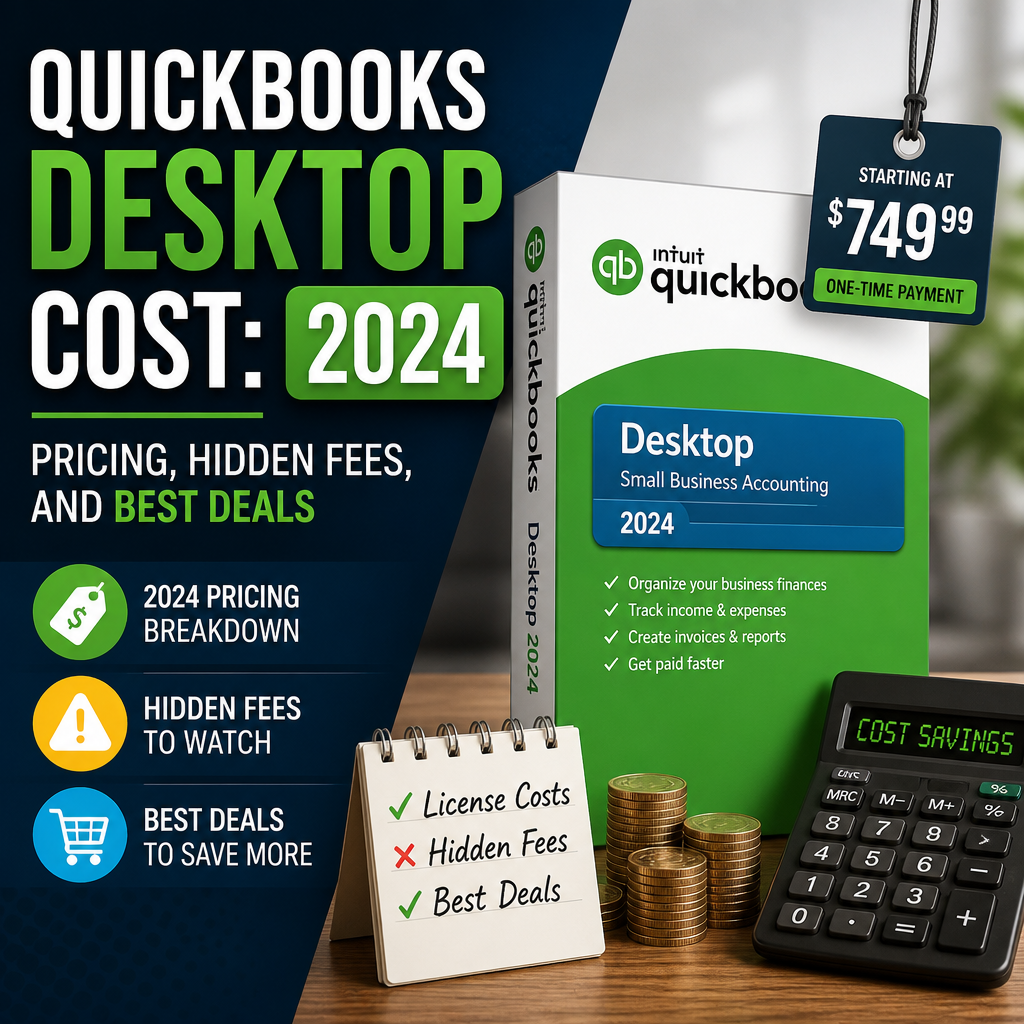
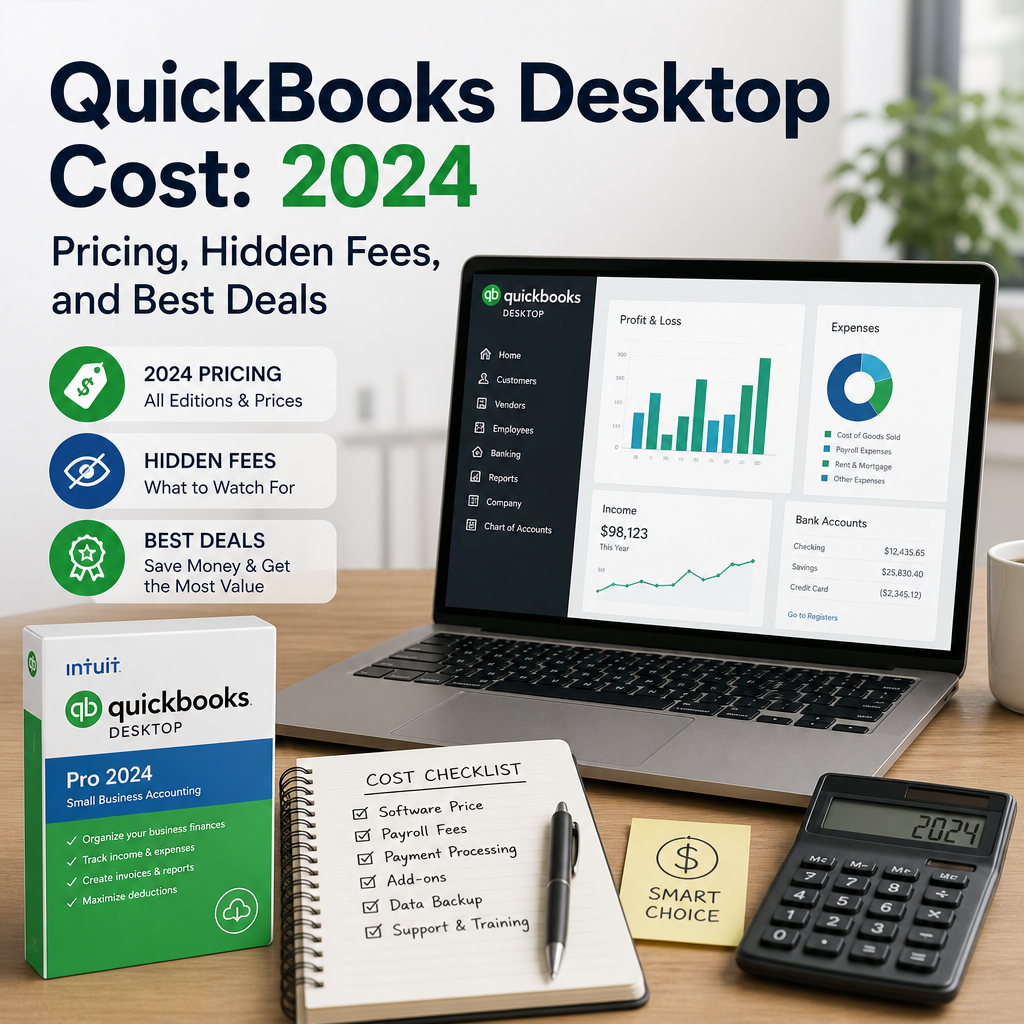
    QuickBooks Desktop 2024 pricing guide with checklist of costs, hidden fees, and software features on a digital screen.

    QuickBooks Desktop is trusted by millions for efficient bookkeeping and robust accounting features. It’s popular among businesses for its reliability, offline capabilities, and industry-specific editions. The 2024 lineup includes options for both Windows and macOS, such as QuickBooks Pro Plus 2024 and quickbooks mac.

    For many buyers, the value comes from the combination of local installation, strong reporting tools, and familiar workflows. If you are comparing purchase options, it can also help to review a practical Buy QuickBooks Desktop: Secure Your Accounting Software Guide before committing to a plan.

    Subscription Fees: What to Expect

    Unlike previous years, QuickBooks Desktop is now subscription-based. Here are the standard annual prices for 2024:

    • QuickBooks Pro Plus 2024: Starts around $549/year
    • QuickBooks Premier Plus 2024: Starts from $799/year
    • QuickBooks Mac Plus 2024: Starts from $549/year

    These prices reflect Intuit’s official rates, though they may vary slightly depending on where you buy QuickBooks. The final price can also change based on promotions, package options, and the number of users your business needs.

    What’s Included in the Subscription?

    All subscriptions typically include annual software updates, tech support from Intuit, secure data backups, and automated tools for invoicing, bill payments, and reporting. In practice, these features help keep your books current without forcing a major upgrade every year.

    For official product and support details, Intuit’s help center is a useful reference: Intuit QuickBooks support and learning resources.

    Hidden Costs to Watch For

    The sticker price is just the beginning. Here are some common hidden expenses associated with the QuickBooks Desktop cost that buyers often overlook.

    1. Payroll Services

    If you process payroll, you’ll need to add Intuit’s payroll service, which costs extra. Expect to pay an additional $500–$900 per year based on the plan. This can be one of the largest add-on expenses for small teams.

    2. Additional Users

    QuickBooks Pro Plus allows up to 3 users, while Premier Plus allows up to 5. Extra user licenses can increase your total cost, especially as your business grows. Planning ahead for user access can prevent a surprise budget increase later in the year.

    3. Add-ons and Integrations

    Add-ons such as Inventory Management or Time Tracking tools incur further fees. Advanced features are not always bundled with the standard subscription, so it is worth checking which functions are included before you purchase.

    4. Data Migrations or Upgrades

    Migrating old company files to newer versions or switching from QuickBooks Online to Desktop might require expert help, which can add to your expenses. If you have a complex file history, migration support may be worth budgeting for from the start.

    5. Support & Training

    While some support is included, premium services like one-on-one training or dedicated account management may cost extra. Businesses that are new to desktop accounting often find training helpful, but it should be treated as part of the total ownership cost.

    How to Find Exclusive Savings

    To lighten the QuickBooks Desktop cost, consider these strategies. A small amount of research can make a meaningful difference, especially if you are buying for a single user or a growing team.

    Buy Through Authorized Resellers

    Sites like usquickbooks and quickbooksforllc often offer discounts, especially for new users or when bundling services. If you want to compare purchase options while staying within a trusted product ecosystem, start with the Buy QuickBooks Desktop guide for a practical overview.

    Look For Seasonal Promotions

    Intuit and its partners frequently run sales around tax season and at year-end. Purchasing during these times can save you between 10-30% on your QuickBooks licence. Even a modest discount can reduce the first-year cost enough to justify waiting for a promotion.

    Multi-Year Subscriptions

    Some vendors offer discounts if you commit to multiple years upfront. This can lock in a lower annual rate and avoid price hikes. If your accounting setup is stable, a longer commitment may be a sensible way to control future spending.

    Educational & Nonprofit Discounts

    Qualifying organizations can request special pricing, reducing the cost of QuickBooks 2024 editions. Be sure to verify eligibility requirements before applying, since discounts are usually tied to documentation or organization type.

    Is QuickBooks Desktop Worth the Cost?

    When comparing with other accounting software, QuickBooks Desktop stands out for its advanced features, powerful reporting, and industry-tailored solutions. However, the subscription model means costs are ongoing, so buyers should weigh feature depth against the long-term budget.

    If you need advanced local accounting and don’t require cloud access, QuickBooks Desktop remains a cost-effective and powerful choice. Businesses that value desktop performance, detailed reporting, and classic workflows often find the platform justifies the annual spend.

    For readers exploring alternatives before making a final decision, this overview of QuickBooks Desktop Alternatives: Top Picks for Modern Accounting Software can help you compare feature sets and costs side by side.

    Before you decide, ask yourself:

    • How many users do you need?
    • Which features are essential for your business?
    • Are you comfortable with an annual fee?
    • Will you need payroll, inventory, or training add-ons?
    • Do you prefer a desktop workflow over cloud-only accounting?

    QuickBooks Desktop Cost FAQ

    Is QuickBooks Desktop a one-time purchase?

    No. QuickBooks Desktop is now subscription-based, so you should plan for an ongoing annual fee rather than a single lifetime purchase. That change affects the total ownership cost more than many first-time buyers expect.

    Does the QuickBooks Desktop cost include payroll?

    Usually not. Payroll is commonly sold separately, and the add-on can increase your yearly expense significantly depending on the plan and number of employees.

    Can Mac users buy the same version as Windows users?

    No. Mac and Windows buyers should choose the version that matches their system. The pricing may look similar, but the product editions and workflow needs are different.

    What is the smartest way to reduce the QuickBooks Desktop cost?

    Watch for promotions, compare authorized sellers, and choose only the features you actually need. The best deal is not always the lowest sticker price if it leaves out essential tools.

    The QuickBooks Desktop cost goes beyond the annual subscription. Factor in hidden expenses, choose the right edition, and watch for exclusive savings from trusted vendors like usquickbooks or quickbooksforllc before you buy. By understanding the full picture, you can make an informed decision and ensure your investment in QuickBooks delivers maximum value for your business in 2024 and beyond.

  • QuickBooks Desktop Pro 2023 Guide: Master Accounting Software for Business

    QuickBooks Desktop Pro 2023 Guide: Master Accounting Software for Business

    Managing finances can be overwhelming for small business owners. QuickBooks Desktop Pro 2023 steps in as a powerful ally, giving you comprehensive control over your business accounts, expenses, invoicing, and reporting. Whether you’re new to accounting software or upgrading from previous versions, this guide will help you master your finances for long-term growth.

    Why Choose QuickBooks Desktop Pro 2023?

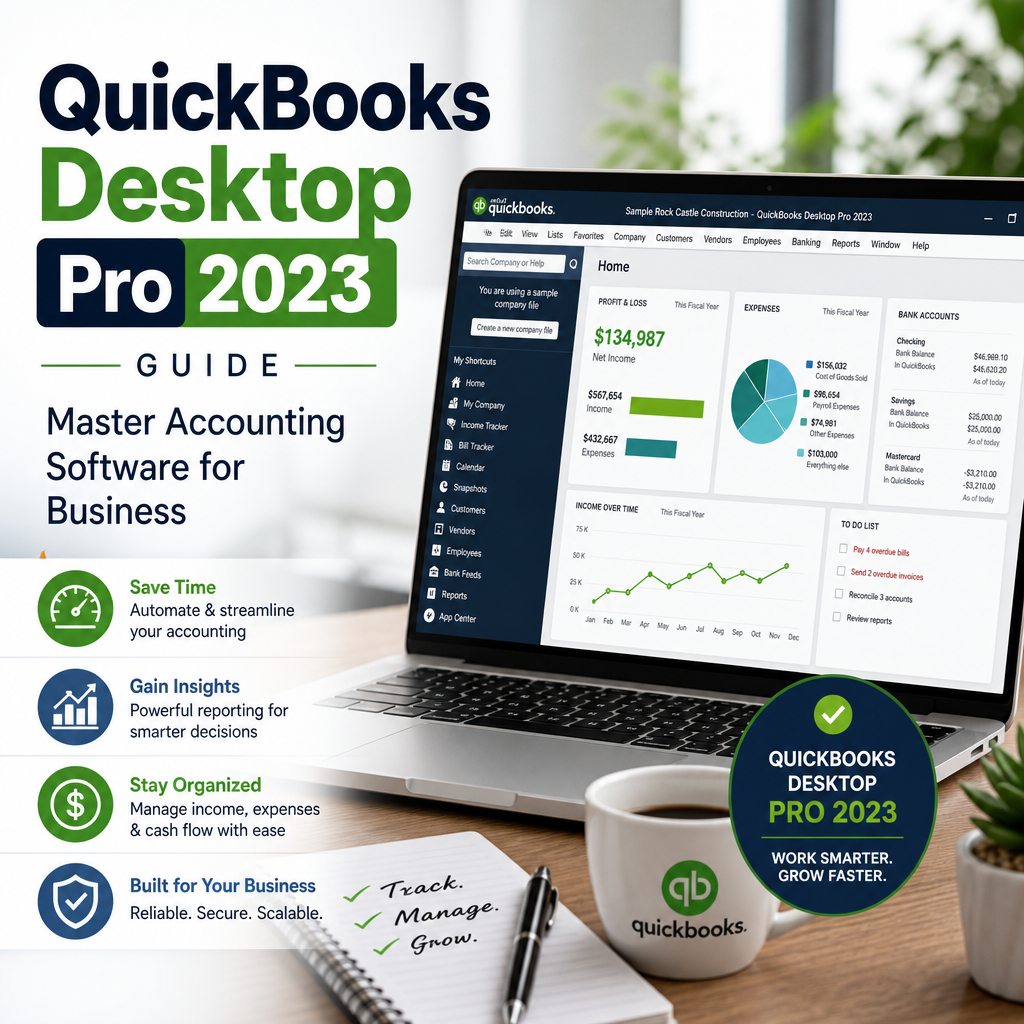
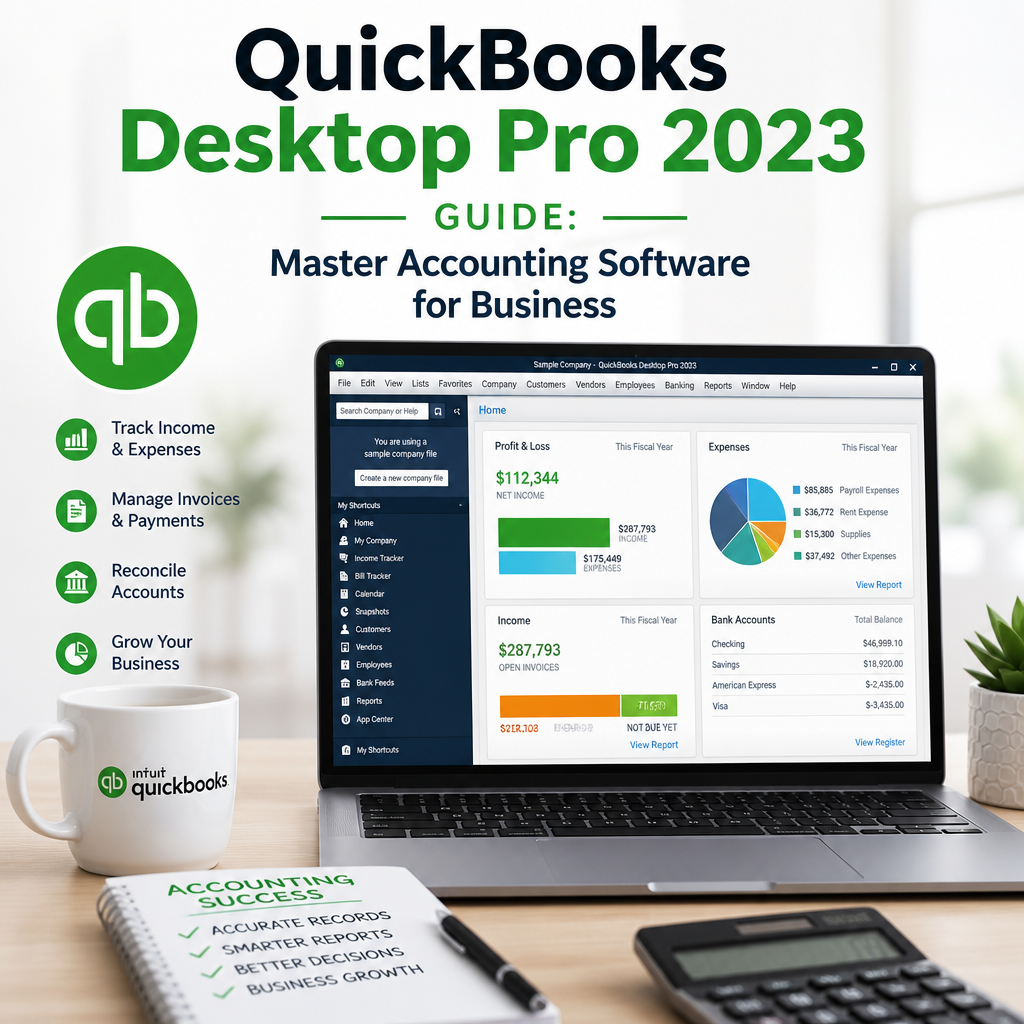
    A computer screen displaying QuickBooks Desktop Pro 2023 accounting dashboard with financial charts and reports.

    QuickBooks has consistently been among the top choices for small and medium-sized businesses. The 2023 edition adds new features and improved usability, making it a compelling option for those seeking a robust accounting platform. For owners who want reliable bookkeeping without a steep learning curve, this version offers a balanced mix of everyday accounting tools and advanced reporting.

    QuickBooks Desktop Pro 2023 can help you stay organized through tax season, keep invoices moving, and make better decisions from day to day. It is especially helpful for companies that want a desktop workflow with dependable local control, simple navigation, and reporting that is easy to review with an accountant.

    Many users also choose the desktop edition because it fits established office routines. If you already rely on spreadsheets, file folders, and scheduled month-end reviews, QuickBooks Desktop Pro 2023 can act as the central hub that keeps those tasks connected. That consistency is one reason the product remains popular among small businesses, consultants, contractors, and service providers.

    Standout Features

    • Enhanced Reporting: Generate detailed financial reports quickly for better business insights.
    • Expense Tracking: Effortlessly monitor every dollar spent and optimize your budget.
    • Advanced Invoicing: Create professional invoices, send reminders, and accelerate payments.
    • Inventory Management: Easily track stock levels and automate reorder alerts.
    • User Access Controls: Assign permissions to specific users for maximum data security.

    These features are especially useful when your business needs clean records, better visibility into cash flow, and fewer manual tasks. The software can also reduce the risk of duplicate entries, missed invoices, and inconsistent categorization, which are common pain points for growing companies.

    If you want more background on desktop product changes and what they mean for users, see our internal guide on QuickBooks Desktop Going Away? What It Means for Users.

    Setting Up QuickBooks Desktop Pro 2023

    Getting started with QuickBooks Desktop Pro 2023 is straightforward. Here’s a quick checklist to get you up and running:

    1. Purchase a QuickBooks Licence: You can buy QuickBooks directly from Intuit or trusted partners like usquickbooks.
    2. Install the Program: Download the installer, follow the prompts, and enter your license number.
    3. Company Setup: Enter business details, chart of accounts, and opening balances.
    4. Connect Bank Accounts: Sync banking data for automated transaction imports.
    5. Set Up Vendors and Customers: Import lists or add new entries for smooth transactions.

    A careful setup saves time later. Take a few extra minutes to confirm your company name, fiscal year, sales tax settings, and payment preferences. Those details shape the way reports are generated and can reduce cleanup work during month-end closing. Good setup habits also make it easier to train staff members if more than one person will use the file.

    If you are migrating from an older desktop version, back up your existing file before making changes. It is also smart to review the official product support documentation from Intuit’s QuickBooks Desktop setup guidance so your configuration matches current best practices.

    During setup, decide how you want to name classes, departments, locations, and vendors. A little structure at the beginning helps your reports stay readable later. That matters whether you are tracking service work, product sales, or recurring client billing.

    Key Functionalities for Small Businesses

    QuickBooks Desktop Pro 2023 comes packed with tools that cater specifically to the needs of small businesses, including those operating as LLCs or managing multiple locations. The program is designed to make daily bookkeeping easier while still supporting deeper financial review when you need it.

    Track Expenses with Accuracy

    Keep a close eye on every transaction. By categorizing expenses, you’ll know exactly where your money goes and where you can save. The intuitive dashboard makes reviewing your spending habits effortless. Over time, that visibility can reveal patterns such as rising vendor costs, seasonal spending spikes, or categories that deserve a tighter budget.

    Expense tracking is most effective when it becomes part of your weekly routine. Reconcile bank and credit card accounts regularly, attach receipts when possible, and use clear category names so your reports remain easy to read. QuickBooks Desktop Pro 2023 also makes it easier to compare current month spending with prior periods, which helps you make practical decisions faster.

    Manage Invoices and Payments

    Professional invoicing is essential for cash flow. With QuickBooks, you can customize templates, set up recurring invoices, and send automatic payment reminders to clients. Integration with payment processors ensures you get paid faster. This is especially valuable if your business depends on regular billing cycles or retainer-based work.

    To keep payments flowing smoothly, standardize invoice terms, add a due date to every bill, and review aging reports to spot overdue accounts quickly. Small process improvements can have a big impact on collections. When customers know what to expect and your invoices are consistent, late payments are less likely to become a regular problem.

    Generate Reports with Ease

    Tax time is less stressful when everything is organized. QuickBooks offers:

    • Profit & Loss Statements
    • Balance Sheets
    • Customizable Sales Reports
    • Expense Summaries

    All reports can be exported, printed, or securely shared with your accountant. When you review them consistently, you can identify trends earlier and make changes before small issues become costly ones. QuickBooks Desktop Pro 2023 makes that review process more manageable because the reports are familiar, customizable, and easy to revisit month after month.

    Use Reporting to Support Better Decisions

    Beyond basic bookkeeping, reports can guide hiring, pricing, and purchasing decisions. For example, a steady rise in overhead may indicate it is time to renegotiate supplier contracts or adjust your service rates. In the same way, strong profit margins in one line of business can help you focus your efforts where returns are highest.

    Many owners also use monthly reports to compare current performance with the previous quarter. That habit creates a simple rhythm for measuring growth and catching surprises before they affect cash flow. QuickBooks Desktop Pro 2023 gives you the numbers, but your routine is what turns those numbers into action.

    How QuickBooks Desktop Pro 2023 Supports Everyday Operations

    For many businesses, accounting software is not just about tax preparation. It also supports the day-to-day work that keeps operations moving. With QuickBooks Desktop Pro 2023, you can monitor open invoices, keep vendor records in one place, and reduce the amount of time spent searching for transaction details.

    That practical convenience matters when you are juggling client work, inventory purchases, employee scheduling, and seasonal demand. Instead of moving between disconnected tools, you can use one system to keep your accounting records organized and accessible.

    Another advantage is consistency. When you enter transactions the same way every time, your financial reports become more reliable. That makes it easier to see whether revenue is rising, whether certain expenses need review, and whether your business is on track to meet its goals.

    How to Build a Strong Bookkeeping Routine

    A reliable accounting system is only as good as the habits behind it. Set a fixed time each week to update transactions, match bank activity, and review outstanding invoices. That rhythm prevents small problems from piling up.

    It also helps to separate bookkeeping tasks by purpose. One session can focus on categorizing expenses, another on sending invoices, and another on reviewing reports. Breaking the work into manageable pieces makes the process less intimidating and more consistent. Over time, the routine becomes easier to follow and less likely to be skipped during busy periods.

    If you work with multiple vendors or customer groups, create naming conventions early. Clear labels keep your data easy to filter and help avoid confusion when you run year-end reports or search historical transactions. QuickBooks Desktop Pro 2023 works best when the data inside it is organized in a way that matches how your business actually operates.

    It is also a good idea to keep a simple month-end checklist. Reconcile accounts, review unpaid bills, confirm invoice totals, and export key reports before closing the books. That extra discipline helps protect your records and gives you a stronger snapshot of business performance.

    Tips to Maximize QuickBooks Desktop Pro 2023

    Unlock the full potential of your accounting software with these expert tips:

    • Regular Backups: Always back up your company files to protect your data.
    • Stay Updated: Check for software updates or consider annual upgrades, such as QuickBooks Pro Plus 2024 or quickbooks 2024, to access the latest features and security patches.
    • Utilize Support Resources: Tap into communities like quickbooksforllc for tips and troubleshooting.
    • Explore Multi-Device Options: If you use Macs, explore quickbooks mac options for seamless integration across platforms.

    Strong habits matter as much as software features. Schedule regular file backups, keep your chart of accounts tidy, and make it a practice to review profit and loss statements on a monthly basis. These simple steps help you get the most value from the program.

    You can also save time by building templates for recurring invoices, recurring transactions, and standard reports. Once those items are configured, your team can work faster with fewer repeated clicks and fewer chances for manual error. That is one reason QuickBooks Desktop Pro 2023 remains attractive for busy owners who want structure without complexity.

    When you are comparing desktop products, it can also help to review alternatives and see whether your workflow still fits a desktop model. Our guide to QuickBooks Desktop Alternatives: Top Picks for Modern Accounting Software can help with that evaluation.

    Should You Upgrade to QuickBooks Pro Plus 2024?

    While QuickBooks Desktop Pro 2023 is a powerful solution, some businesses may benefit from upgrading to the newest versions like QuickBooks Pro Plus 2024. This latest release provides enhanced automation tools, deeper analytics, and improved security. If your operation is growing rapidly or requires advanced features, consider reviewing upgrade options when planning future software purchases.

    A good upgrade decision depends on your workflow. If your team needs more automation, stronger permissions, or better long-term support, moving to a newer release may be worthwhile. On the other hand, if your current setup is stable and your team already knows the system well, it may make sense to stay put until your business needs change.

    Before you upgrade, review your existing reports, payroll workflow, inventory needs, and file compatibility. That preparation reduces downtime and helps you transition with fewer surprises. It also gives you a chance to compare what you already use against the features that would genuinely save time.

    Some owners like to test their routines against future planning before making a purchase. If you are unsure about timing, map out the tasks you perform most often and decide whether an update would remove friction or simply add another expense. That practical approach can make QuickBooks Desktop Pro 2023 feel like the right fit for now, even if you plan to upgrade later.

    QuickBooks for Growing Businesses and LLCs

    Many small businesses and LLCs choose desktop accounting because it offers dependable control over daily financial tasks. The ability to manage invoices, payments, vendors, and reports from one place can simplify operations and reduce the risk of errors.

    As your company grows, your accounting process should grow with it. If you add employees, expand to new services, or start handling more customer accounts, use the software’s reporting tools to keep an eye on profitability. That visibility makes it easier to decide when to hire, when to invest, and when to hold back.

    Businesses that work with outside accountants often appreciate the consistency of a desktop file. Clean records, clear categories, and regular backups make collaboration easier at tax time and during quarterly reviews. In this way, QuickBooks Desktop Pro 2023 can support both internal bookkeeping and outside financial oversight.

    If your company has multiple locations, service lines, or cost centers, a structured accounting system becomes even more important. Separating activity early can help you compare performance by segment and identify which parts of the business deserve more attention.

    How to Buy QuickBooks the Right Way

    Before you buy QuickBooks, confirm that the version you are considering matches your current hardware, operating system, and business workflow. Not every edition is the right fit for every owner, and choosing carefully can prevent frustration later.

    Look closely at licensing details, support availability, and product compatibility. A valid QuickBooks licence matters because it helps protect access to updates and official support resources. If you are comparing sellers, make sure the product is legitimate and that the purchase terms are clear.

    You can also review product guidance on the manufacturer’s site to understand support availability, licensing terms, and feature differences before making a final decision.

    Where to Buy QuickBooks

    Ready to invest? You can buy QuickBooks through authorized retailers, Intuit’s website, or trusted partners such as usquickbooks. Always ensure you’re purchasing a valid QuickBooks licence to receive official support and updates.

    Before purchasing, confirm that you are choosing the version that fits your computer system and business needs. If you are comparing options, consider whether you need a desktop edition, a Mac-friendly setup, or a newer release for future-proofing. Product fit matters just as much as price.

    If you need guidance on platform-specific choices, you may also want to review the right product path for your environment. For example, some users prefer a desktop product built for Apple systems, while others want a standard Windows workflow. In either case, the goal is the same: choose accounting software that supports your process instead of slowing it down.

    You can also review product guidance on the manufacturer’s site to understand support availability, licensing terms, and feature differences before making a final decision.

    What to Look for When Choosing Accounting Software

    Not every accounting platform is built the same way. When comparing options, think about how many users need access, whether you need inventory support, and how often you create invoices. Those practical details usually matter more than flashy feature lists.

    It is also worth considering reporting depth, backup options, and ease of use. The right software should save time, reduce manual entry, and give you clear financial answers when you need them most. A thoughtful choice can improve confidence across your entire finance workflow.

    If your business relies on desktop tools, make sure the workflow feels sustainable for the long term. A good fit should support your current process and still leave room to grow. That is true whether you are just starting out or refining an established bookkeeping system.

    Common Mistakes to Avoid

    Even strong accounting software can produce poor results if it is used carelessly. One common mistake is failing to reconcile accounts regularly. Another is leaving transactions uncategorized for too long, which can make reports confusing and tax preparation harder.

    It is also easy to overlook backup routines. If you wait until a problem happens, recovery can become stressful. Consistent backups, organized file names, and clean user permissions all help protect your records.

    Another issue is using reports only during tax season. QuickBooks Desktop Pro 2023 becomes much more valuable when you check reports throughout the year. Regular review helps you catch small problems early and keeps your financial picture clearer.

    Final Thoughts

    Mastering your finances is the cornerstone of business success. With QuickBooks Desktop Pro 2023, you gain the tools needed to track expenses, improve invoicing, and streamline reporting. Whether you’re managing a small startup or a growing LLC, QuickBooks delivers the power, flexibility, and control you need.

    Stay informed about new versions like quickbooks 2024 and leverage resources such as quickbooksforllc to keep your financial management ahead of the curve. If your needs change, you can compare newer releases and desktop alternatives, but the core value remains the same: a dependable system for keeping your books organized and actionable.

    Start optimizing your business accounting today with QuickBooks Desktop Pro 2023—the smart and reliable choice for entrepreneurs who demand precision and efficiency.

  • QuickBooks Desktop Alternatives: Top Picks for Modern Accounting Software

    QuickBooks Desktop Alternatives: Top Picks for Modern Accounting Software

    Modern businesses depend on robust accounting software to manage finances efficiently, keep records organized, and support smarter decisions. While QuickBooks Desktop has long been a market leader, shifting business needs, cloud solutions, and changing user preferences have prompted many companies to consider other options. If you’re looking for QuickBooks Desktop alternatives, this guide will help you explore practical choices for your business’s financial management.

    Why Look Beyond QuickBooks Desktop?
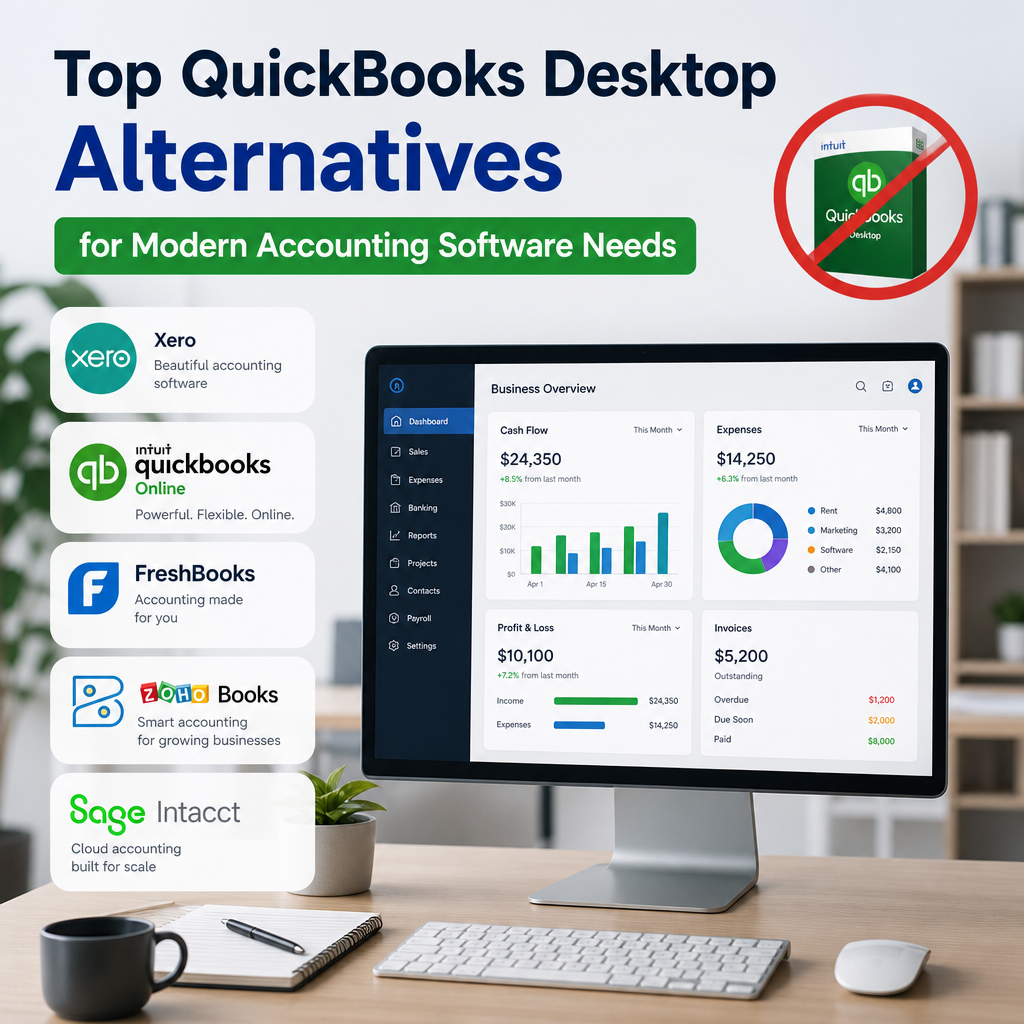
    Icons for Xero, FreshBooks, and Sage Intacct beside a chart, representing QuickBooks Desktop alternatives for modern accounti

    QuickBooks Desktop Alternatives are becoming more relevant as businesses prioritize flexibility, collaboration, and easier access to financial data. QuickBooks Desktop, including versions like QuickBooks Pro Plus 2024 and QuickBooks for Mac, remains a dependable choice for many. However, there are several reasons businesses are seeking other accounting software options:

    • Cloud-Based Access: More companies require flexible, anywhere access that traditional desktop solutions cannot offer.
    • Ease of Use: Businesses want intuitive platforms with streamlined interfaces.
    • Scalability: Growing companies need software that can adapt as their needs evolve.
    • Cost Efficiency: Annual subscriptions, such as those for QuickBooks licences, contribute to ongoing costs.

    Before deciding to buy QuickBooks or renew your QuickBooks 2024 subscription, it helps to compare those costs with the value offered by newer platforms. For readers monitoring product changes in the lineup, this QuickBooks Desktop Going Away? What It Means for Users guide explains the broader transition in practical terms.

    In many cases, businesses are not replacing QuickBooks because it fails outright. Instead, they are choosing software that better matches remote work, modern reporting needs, or simpler workflows for everyday bookkeeping. That is why QuickBooks Desktop alternatives continue to attract attention from startups, freelancers, and established companies alike.

    For some owners, the decision starts with a simple question: do we want to keep a desktop program installed on one machine, or do we want accounting software that follows the team wherever it works? That distinction matters more now than ever, especially for companies with hybrid schedules, distributed teams, or frequent travel.

    Another reason businesses evaluate QuickBooks Desktop alternatives is data visibility. If managers, accountants, and bookkeepers all need access at different times, a cloud platform can reduce bottlenecks and improve response times. Instead of waiting for one person to open the file, the team can review current numbers in real time.

    Security is also part of the conversation. Some organizations prefer local control, while others value the backups, permissions, and encrypted access commonly included in online systems. The right accounting software should support both recordkeeping and confidence in how that information is stored and shared.

    Top QuickBooks Desktop Alternatives

    Below are some of the most commonly recommended alternatives for businesses comparing accounting software platforms. Each option has strengths that may fit different budgets, team sizes, and workflow preferences. If you are evaluating QuickBooks Desktop alternatives for the first time, this section offers a useful starting point.

    1. Xero

    Xero is a cloud-based accounting platform designed for simplicity and collaboration. It is a strong contender among QuickBooks Desktop alternatives because it offers:

    • Real-time multi-user access
    • Automated bank feeds and reconciliation
    • Invoicing, expense tracking, and payroll
    • Integration with a wide range of third-party apps

    Xero’s intuitive dashboard and accessibility make it ideal for growing teams and businesses with remote staff. Its cloud-first approach also appeals to companies that no longer want to manage local software installs and manual updates. For businesses comparing QuickBooks Desktop alternatives, Xero often stands out for the balance it offers between core bookkeeping tools and an easy onboarding experience.

    It is also helpful for companies that need a clean, modern view of cash flow without a complicated setup. That simplicity can save time during monthly close and make the day-to-day process of entering transactions feel less repetitive. If your team values collaboration, Xero is worth a close look.

    2. FreshBooks

    FreshBooks is tailored to freelancers, contractors, and small business owners who want simple accounting software without a steep learning curve. Key features include:

    • User-friendly invoicing and expense capture
    • Time tracking and project management tools
    • Accessible reports and analytics
    • Cloud-based convenience

    FreshBooks stands out for its clean interface and customer support, making it especially attractive for service-based businesses that bill by the hour or need easy client management tools. Among QuickBooks Desktop alternatives, it is often considered one of the easiest options to adopt quickly.

    Freelancers often prefer FreshBooks because it keeps administrative work light. Instead of spending time navigating dense menus, users can focus on billing clients, tracking billable hours, and following overdue invoices. That practical focus makes it especially appealing to consultants, designers, and agencies that need efficiency more than deep accounting complexity.

    If your business is small but client-facing, FreshBooks can simplify the work that matters most. It is not trying to be everything for everyone, and that can be a benefit when your priority is speed, clarity, and a polished client experience.

    3. Sage 50cloud

    Sage 50cloud offers a blend of desktop performance and cloud connectivity. It appeals to businesses seeking advanced features and a familiar feel reminiscent of traditional desktop accounting systems.

    • Advanced inventory management
    • Cash flow and budgeting tools
    • Integration with Microsoft 365 for enhanced productivity
    • Robust security and control features

    Its hybrid approach means you get local data security with remote access, positioning Sage 50cloud as a practical solution for established businesses that still prefer a desktop-style workflow.

    For companies that manage inventory, Sage 50cloud can be especially valuable. Inventory visibility, cost tracking, and budget control all become more important as operations grow, and this platform is built to handle more demanding workflows. It is one of the QuickBooks Desktop alternatives that feels familiar to users who want structure without giving up access.

    Businesses that have used desktop accounting software for years may appreciate the fact that Sage 50cloud does not force a drastic change in process. That can reduce training time and help staff settle into the new system more comfortably. In short, it is a good fit when you need a more advanced tool but do not want to abandon the habits your team already knows.

    4. Zoho Books

    Zoho Books is part of the broader Zoho ecosystem and is designed for growing businesses that want comprehensive yet affordable accounting software. It is one of the more flexible QuickBooks Desktop alternatives for organizations already using other Zoho applications.

    • Automated workflows for invoicing and billing
    • Bank reconciliation, inventory tracking, and project management
    • Integration with Zoho apps and popular payment gateways

    Zoho Books is a cost-effective choice for businesses wanting scalability without high overhead, such as recurring fees for QuickBooks licences. If your company values automation and connected business tools, Zoho can be a strong fit.

    It is also a practical choice for organizations that want accounting to be part of a larger operating system. When invoicing, CRM, email, and project tools all sit in the same ecosystem, teams spend less time switching between apps and more time moving work forward. That kind of integration is one reason Zoho Books remains popular among growing firms.

    For small business owners comparing QuickBooks Desktop alternatives, Zoho Books often deserves attention because it can scale gradually. You may start with the basics and add more capabilities as the business matures, which helps keep costs aligned with actual usage.

    5. Wave

    Wave is a free accounting platform that covers many essentials small businesses need. Its highlights include:

    • Free invoicing, receipt scanning, and basic accounting tools
    • Pay-as-you-go payment processing and payroll services
    • User-friendly interface ideal for beginners

    If your business needs a budget-friendly alternative to QuickBooks or you are starting out and not ready for the investment in QuickBooks Pro Plus 2024, Wave is a compelling option. It is especially appealing to solo operators and small teams that need straightforward bookkeeping without complexity.

    Wave can be a smart fit for businesses that are still building revenue and want to keep overhead low. Instead of paying for features you may not use, you can focus on a lean accounting process that still covers the essentials. For many new businesses, that balance matters more than extensive customization.

    That said, Wave is best for organizations with simpler needs. If you expect to grow quickly or need more advanced inventory, job costing, or approval workflows, you may eventually outgrow it. Even so, it remains one of the more approachable QuickBooks Desktop alternatives for very small businesses.

    6. QuickBooks Desktop Pro Plus 2024

    For businesses that like the QuickBooks experience but want to stay with a familiar desktop product, QuickBooks Desktop Pro Plus 2024 – Lifetime License Key – USA Version (1 User) may still be part of the comparison process. This option is not an alternative in the strictest sense, but it is often reviewed alongside other accounting software choices when a business is deciding whether to keep using QuickBooks Desktop or move on.

    That comparison matters because the best solution is not always the newest one. Some companies prefer the familiarity of QuickBooks Desktop while others want the flexibility that cloud-based platforms offer. In practice, the right choice depends on the size of your team, your reporting needs, and your comfort level with software change.

    For some buyers, price and continuity are the deciding factors. If your staff already knows the workflow and your records are organized within the current ecosystem, staying put may reduce disruption. Still, reviewing QuickBooks Desktop alternatives alongside the latest QuickBooks Desktop offers can help you make a more informed, long-term decision.

    If you are comparing product tiers, the broader lineup may also matter. Businesses sometimes move between one-user and multi-user setups as they expand, so understanding how each product supports collaboration can save time and frustration later.

    Other practical options to compare

    Depending on your industry, there may be other tools that fit specific needs even if they are not the most obvious names in the market. Some businesses need stronger project accounting, while others need easier expense capture or simpler bank reconciliation. That is why the best shortlist of QuickBooks Desktop alternatives should reflect your actual workflow, not just feature marketing.

    Before you commit, think about the everyday tasks that matter most: sending invoices, matching bank transactions, managing vendors, tracking expenses, producing reports, and supporting tax preparation. The software that handles those jobs smoothly is usually the one that delivers the most value.

    How to Choose the Best Alternative

    Picking the right accounting software involves assessing your specific needs rather than choosing based on brand recognition alone. When comparing QuickBooks Desktop alternatives, consider the following factors:

    • Cloud vs. Desktop: Prioritize mobility and access? Cloud-based solutions like Xero and FreshBooks may be best.
    • Industry Requirements: Some sectors require advanced inventory or job costing features—consider Sage 50cloud if so.
    • Budget: Compare ongoing costs for options versus what you’d pay to buy QuickBooks Desktop or QuickBooks Pro Plus 2024.
    • Integration Needs: Review which platforms connect well with your other tools—Zoho Books excels here.
    • Support and Training: Consider onboarding resources, help documentation, and support quality before making a final decision.

    A useful approach is to list the workflows your team handles most often, such as invoicing, expense tracking, payroll, inventory, or multi-user access. Then compare each platform against those needs instead of judging by feature count alone. That process usually makes the best match much clearer.

    If you want a general benchmark for good accounting practices, the IRS small business tax and recordkeeping resources can help you understand what financial documentation and reporting should support your workflow.

    It also helps to think beyond the software demo. A polished interface can look great in a trial, but real-world accounting depends on how easily the platform handles day-to-day operations over time. Ask whether the system supports bank rules, user permissions, recurring transactions, and reporting in a way that matches how your team already works.

    If your business relies on collaboration, check whether the platform lets different users access only what they need. That can reduce mistakes and keep sensitive financial data more secure. For a growing company, those controls are just as important as the headline features.

    Another smart step is to review what happens when your business grows. A solution that works well for two employees may become limiting at ten. The best QuickBooks Desktop alternatives are the ones that can grow with you without forcing a second migration too soon.

    What to Expect During a Switch

    Moving from one accounting system to another can feel intimidating, but the process is usually manageable with the right plan. Before changing platforms, review your chart of accounts, customer and vendor lists, open invoices, unpaid bills, and transaction history. Clean data makes migration smoother and reduces errors later.

    It is also a good idea to test the new system before fully committing. Many vendors offer demos, trials, or onboarding assistance so you can compare features in a real workflow. During this stage, pay close attention to how reports look, how easy it is to create invoices, and whether the platform supports the way your team actually works.

    For some businesses, the hardest part is not the move itself but adjusting to a new process. Staff who are comfortable with one interface may need time to adapt to another. That is why training matters just as much as the software selection. Even strong QuickBooks Desktop alternatives can underperform if the team does not understand how to use them well.

    Businesses that rely heavily on multi-user collaboration should also check permissions, audit trails, and access controls. These features can make a major difference in maintaining clean records and preventing accidental changes. If your accounting process spans several departments, that level of control becomes especially important.

    To reduce disruption, it helps to plan the switch in stages. First, clean up existing records. Next, move over the most important opening balances and active contacts. Then run the new system alongside the old one long enough to confirm reports and workflows are working properly. That phased approach lowers risk and gives your staff time to adjust.

    After the migration, give your team a short checklist for common tasks. Include steps for entering bills, sending invoices, reconciling accounts, and reviewing month-end reports. Small process documents can make a big difference when people are learning a new system.

    Most importantly, remember that a software change should improve the business, not add confusion. The goal is not to chase features for their own sake. The goal is to choose accounting software that makes daily work easier, financial reporting clearer, and decision-making faster.

    When Staying with QuickBooks Desktop Still Makes Sense

    Although many businesses are exploring QuickBooks Desktop alternatives, staying with QuickBooks Desktop can still make sense in certain situations. Some companies already have established workflows, industry-specific add-ons, or long-term staff familiarity with the platform. Others simply prefer the structure of desktop accounting software and do not need the flexibility of a cloud-first system.

    If your current version does everything you need and your team is productive with it, there may be no urgent reason to change. In that case, the best move could be to maintain your current setup while monitoring how the market evolves. A well-run accounting process is more important than following every software trend.

    At the same time, it is wise to keep an eye on new releases, pricing shifts, and support changes. Even loyal QuickBooks users should periodically review whether their current setup still serves their business goals. That is especially true if you are considering a future upgrade, replacing old hardware, or expanding your team.

    Some companies also stay because their accountants or bookkeepers already work comfortably inside the QuickBooks environment. That familiarity can reduce errors and save time during tax season or month-end close. If efficiency is already strong, changing tools may not deliver enough benefit to justify the transition.

    There is no rule that says a business must leave a system just because newer options exist. The smartest decision is the one that improves operations without creating unnecessary friction. For some organizations, that means choosing one of the many available QuickBooks Desktop alternatives. For others, it means staying with the platform they know and using it well.

    It can also be sensible to stay put if your current setup is closely tied to hardware, workflows, or third-party tools that would be expensive to replace. In those cases, a future switch may still be possible, but it should happen on your timeline rather than under pressure.

    Practical checklist before you decide

    • Identify the accounting tasks your team uses most often.
    • Compare cloud access, reporting, and collaboration needs.
    • Review the total cost of ownership, not just the monthly price.
    • Test how quickly your staff can learn the new interface.
    • Confirm that your records can be exported or migrated cleanly.
    • Check support quality before you commit to a platform.

    This checklist can help narrow the field and make the final decision feel less overwhelming. Even when several products look similar at first glance, the right one usually becomes clear once you compare how each system handles the tasks you perform every week.

    For many businesses, the right answer is the one that combines ease of use with dependable recordkeeping. That may be a cloud platform, a hybrid system, or a familiar desktop product. The important thing is choosing software that supports the way you actually run your business today.

    Final Thoughts

    While many businesses have depended on QuickBooks Desktop, plenty of robust QuickBooks Desktop alternatives are now available, each offering different strengths such as cloud flexibility, cost savings, or specialized features. Whether you are seeking an upgrade from QuickBooks 2024 or just exploring what is next for your accounting needs, these platforms provide modern solutions for every business size and sector.

    Thinking about making the switch? The right accounting software can transform your financial management, freeing you to focus on building your business for the future. Comparing features, pricing, support, and workflow fit will help you choose the option that best supports your growth.

    In short, there is no single winner for every company. The best choice is the one that fits your team, your budget, and the way you actually operate. That is why thoughtful comparison remains the most reliable path when evaluating accounting software today.

    When you are ready to choose, prioritize clarity over complexity. A platform that your team understands and uses consistently will always outperform software that looks powerful but creates confusion. That simple principle often separates a good accounting decision from a costly one.

    For that reason, QuickBooks Desktop alternatives should be judged not only by features, but by how well they support real business habits. If the software saves time, reduces errors, and gives you better visibility into your finances, it is doing its job well.